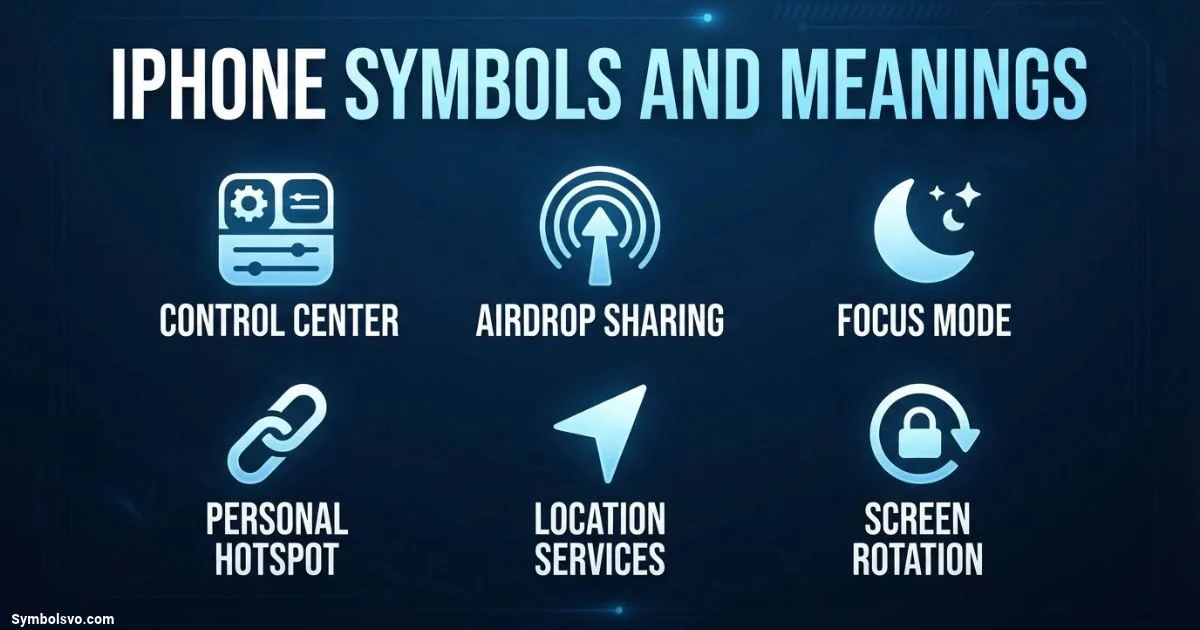
Your iPhone displays dozens of symbols throughout the day. Some show your cellular connection, battery level, or Wi-Fi status. Others indicate that an app is using your camera, microphone, or location. You might also notice unfamiliar icons when you enable Focus Mode, connect Bluetooth accessories, or open the Control Center.
Understanding these iPhone symbols and meanings helps you know what’s happening on your device. It also makes everyday tasks easier because you can recognize active settings without searching through multiple menus.
However, not every symbol appears in the same place. Some belong to the status bar, while others appear in Control Center, notifications, the Lock Screen, or individual apps. This guide explains the most common iPhone icons and their meanings, including network, battery, privacy, location, connectivity, and accessibility indicators.
If you’re using an older iPhone or a newer model with Dynamic Island, you’ll learn how to identify unfamiliar symbols and manage the features behind them.
What Do iPhone Symbols Mean?
iPhone symbols are small visual indicators that communicate information about your device, active settings, and connected services. Apple uses these icons throughout iOS so you can quickly understand your phone’s current status.
For example, the Wi-Fi symbol tells you that your iPhone has connected to a wireless network. A yellow battery indicates Low Power Mode, while an orange privacy indicator means an app is using your microphone.
These indicators serve different purposes. Some simply display information, while others represent controls you can tap to change a setting.
Here are the main categories of iPhone icons:
- Status bar symbols: Show cellular reception, Wi-Fi, battery level, and active features.
- Control Center icons: Provide quick access to settings such as Bluetooth, Airplane Mode, and screen brightness.
- Privacy indicators: Show when an app accesses your camera or microphone.
- Location symbols: Indicate location-related activity and permissions.
- Focus symbols: Identify active modes such as Do Not Disturb, Sleep, and Driving.
- Connectivity icons: Show connections with headphones, wireless accessories, and other Apple devices.
- Notification icons: Help you recognize alerts and activity from installed applications.
One important detail: An icon’s appearance and availability can depend on your iPhone model, iOS version, carrier, region, and enabled features.
Where Do Symbols Appear on an iPhone?
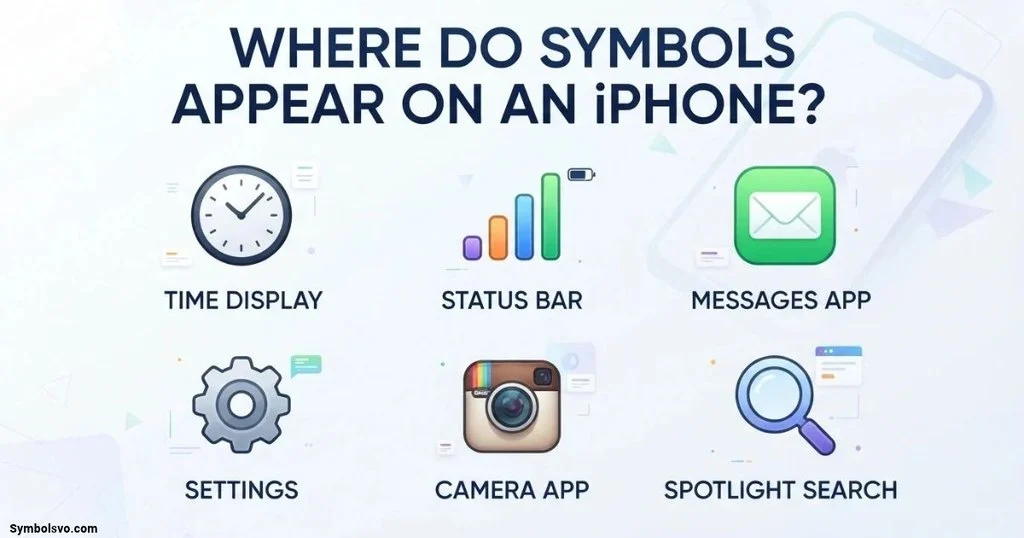
Before identifying an unfamiliar icon, you need to know where it appears. Apple displays symbols in several parts of the interface, and each area communicates different information.
Status Bar
The iPhone status bar appears along the top edge of your screen. It displays important information about your device’s current condition.
Depending on your iPhone model, you’ll find indicators for:
- Cellular signal strength
- Wi-Fi connectivity
- Battery level
- Battery charging
- Airplane Mode
- Focus Mode
- VPN connectivity
- Privacy activity
On Face ID models, the status bar shares space with the notch or Dynamic Island. Some additional indicators become easier to see when you open the Control Center.
Control Center
Control Center provides quick access to frequently used iPhone settings. You can open it without navigating through the Settings app.
On an iPhone with Face ID, swipe down from the upper-right corner. On an iPhone with a Home button, swipe up from the bottom edge.
Common iPhone Control Center symbols include:
- Airplane Mode
- Wi-Fi
- Bluetooth
- Cellular Data
- Personal Hotspot
- Screen Recording
- Screen Mirroring
- Flashlight
- Brightness
- Volume
- Orientation Lock
You can also customize supported controls to match your daily needs.
Lock Screen
Your Lock Screen displays the time, date, notifications, and several useful controls.
Common symbols include:
- Flashlight control
- Camera control
- Lock indicator
- Battery charging indicator
- Notification badges
- Live Activities
These controls let you access useful features without unlocking your iPhone.
Dynamic Island
Dynamic Island appears on supported iPhone models. It provides an interactive area for ongoing activities.
For example, you might see an active phone call, music playback, navigation directions, or a timer.
Tap an activity to open its associated app. Touch and hold it to expand supported activities and view additional information.
App Icons and Notifications
The Home Screen displays icons for installed applications. These icons help you identify apps such as Messages, Camera, Photos, and Settings.
You may also notice small red circles containing numbers. These are notification badges that show unread messages, pending alerts, or other app activity.
Remember that app icons and notification badges aren’t the same as system status indicators.
iPhone Status Bar Symbols and Their Meanings
The status bar contains some of the most frequently searched iPhone status bar symbols. These indicators help you monitor your phone’s network, battery, privacy, and active services.
The following table provides a quick overview.
| Symbol or label | Name | Meaning |
| Wi-Fi arcs | Wi-Fi | Connected to a wireless network |
| Signal bars | Cellular Signal | Shows cellular reception strength |
| 5G | 5G Network | A compatible 5G network is available |
| LTE | LTE Network | LTE cellular connectivity is available |
| Airplane | Airplane Mode | Wireless communication settings are restricted |
| Battery | Battery Level | Shows remaining battery power |
| Yellow battery | Low Power Mode | Battery-saving mode is enabled |
| Green dot | Camera Indicator | An app is using the camera |
| Orange dot | Microphone Indicator | An app is using the microphone |
| Arrow | Location Services | An app is using location services |
| Moon or Focus icon | Focus Mode | A Focus setting is active |
| VPN | VPN Connection | Your iPhone is connected through a VPN |
Let’s examine the main categories in more detail.
Network and Signal Symbols
Your iPhone uses network indicators to show how it connects to cellular and wireless services.
Cellular Signal Strength Icon
The cellular signal icon consists of several vertical bars. More filled bars generally indicate stronger cellular reception.
When your phone can’t connect to your carrier’s network, you may see “No Service” instead.
Weak reception can affect call quality, mobile data speed, and message delivery. Moving closer to a window or an area with better coverage may improve the signal.
Dual SIM Signal Icon
If your iPhone supports Dual SIM and you use two cellular lines, you may see two sets of signal bars.
Each set represents a different cellular line. Apple identifies the upper row with the line used for cellular data and the lower row with the other line.
To identify the associated carriers, open the Control Center and check the displayed cellular plan information.
Wi-Fi Symbol
The Wi-Fi icon looks like several curved lines above a small dot.
It means your iPhone is connected to a Wi-Fi network for internet access.
However, seeing the Wi-Fi icon doesn’t guarantee that the network has a working internet. A connected router may still have an internet outage.
Airplane Mode Symbol
The airplane symbol means Airplane Mode is enabled.
This setting disables cellular connectivity and may also affect other wireless functions. You can manage Wi-Fi and Bluetooth separately while Airplane Mode is active.
To turn it off:
- Open Control Center.
- Find the airplane icon.
- Tap it to disable Airplane Mode.
5G Symbol
The 5G indicator means your carrier’s 5G network is available and your supported iPhone can connect to it.
Actual performance depends on your carrier, network coverage, signal conditions, and cellular settings.
5G UC, 5G UW, and 5G+ Symbols
These labels represent carrier-specific versions of 5G service.
| Symbol | Meaning |
| 5G | Standard carrier 5G indicator |
| 5G UC | T-Mobile’s Ultra Capacity 5G |
| 5G UW | Verizon’s Ultra Wideband 5G |
| 5G+ | AT&T’s enhanced 5G branding |
These indicators can represent access to higher-capacity or higher-frequency network technologies. Availability depends on the carrier and location.
5G E Symbol
5G E stands for 5G Evolution, a marketing label used by AT&T.
It doesn’t represent genuine 5G network technology. Instead, it refers to enhanced LTE service.
This distinction matters because the label can look like a 5G connection even though the underlying network uses LTE technology.
LTE and 4G Symbols
LTE stands for Long-Term Evolution. It’s a cellular technology commonly associated with 4G networks.
Your iPhone may display LTE or 4G depending on the carrier and network configuration.
Both indicators describe cellular connectivity rather than Wi-Fi access.
3G, EDGE, and GPRS Symbols
Older network indicators may still appear in certain regions or on networks that support legacy technologies.
- 3G: Third-generation mobile network technology.
- E: EDGE, an older GSM-based data technology.
- G: GPRS or, on some legacy networks, 1xRTT.
These connections generally offer slower data speeds than modern LTE and 5G networks.
SOS Only Symbol
The SOS or SOS Only indicator means your iPhone can’t obtain normal service from your cellular provider.
However, emergency calls may still be possible through another available carrier network, depending on local support.
Common reasons include:
- Poor cellular coverage.
- Temporary carrier outages.
- SIM or eSIM problems.
- Network registration issues.
- Cellular account or service problems.
To troubleshoot the issue:
- Move to an area with better reception.
- Turn Airplane Mode on and off.
- Restart your iPhone.
- Check your SIM or eSIM settings.
- Contact your carrier if the problem continues.
Don’t confuse SOS Only with Apple’s Emergency SOS feature. The first describes a cellular service condition, while the second helps you contact emergency services.
Satellite Connectivity Symbol
The satellite indicator shows that supported satellite features are available in your location.
On compatible iPhone 14 and later models, these features can include Emergency SOS via satellite, Find My, Roadside Assistance, and Messages via satellite, depending on regional availability.
Satellite communication can help when traditional cellular and Wi-Fi connections aren’t available.
It isn’t the same as ordinary mobile internet. Your iPhone may guide you to point the device toward a satellite to establish a connection.
Other Status Bar Indicators
A few additional symbols provide information about active phone services.
| Indicator | Meaning |
| Wi-Fi Calling | Wi-Fi calling is configured with a supported carrier |
| VPN | Your network connection is using a VPN |
| Personal Hotspot | Your iPhone is sharing its internet connection |
| Network Activity | Network activity is taking place |
| Call Forwarding | Call forwarding is configured |
| CarPlay | Your iPhone is connected to CarPlay |
| Navigation | Turn-by-turn navigation is active |
| Screen Recording | Your iPhone is recording its screen |
| Orientation Lock | Portrait orientation is locked |
| Alarm | An alarm is set |
The exact indicators shown depend on your iOS version and active services.
iPhone Battery Symbols and Their Meanings
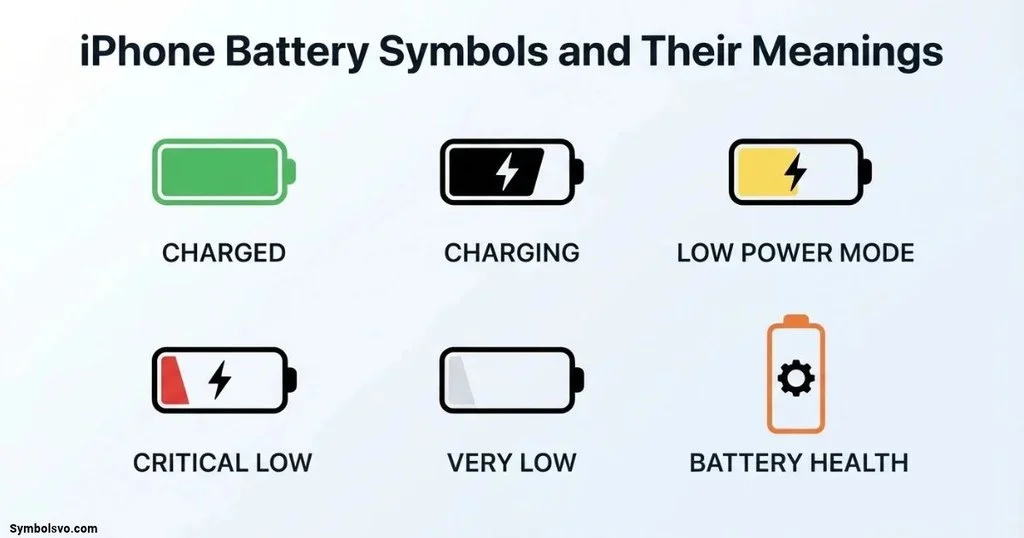
Battery indicators help you understand how much power remains and whether your iPhone is charging or using a power-saving setting.
Normal Battery Icon
The standard battery icon displays your remaining battery level.
As your battery loses power, the filled portion becomes smaller. You can also enable the battery percentage to see a numerical reading.
To enable it:
- Open Settings.
- Select Battery.
- Turn on Battery Percentage.
The percentage gives you a clearer idea of how much power remains than the icon alone.
Yellow Battery Icon
A yellow battery means Low Power Mode is enabled.
This feature reduces background activity and certain system functions to help extend battery life.
Low Power Mode can affect:
- Background App Refresh.
- Automatic downloads.
- Email fetching.
- Some visual effects.
- Certain background processes.
Your iPhone may automatically suggest Low Power Mode when the battery reaches a low level.
You can also enable it manually through Settings > Battery.
Green Charging Battery Icon
A green battery with a lightning bolt indicates that your iPhone is charging.
This symbol commonly appears when you connect a charging cable or place your phone on a compatible wireless charger.
If the battery percentage doesn’t increase, check your charging cable, adapter, power source, and charging port.
Gray or Paused Charging Indicator
A gray charging indicator can mean that charging has paused.
One common reason is temperature management. iOS may temporarily limit or pause charging when your iPhone becomes too warm or too cold.
Optimized Battery Charging can also delay charging beyond 80% under certain conditions.
Move your phone to a suitable environment and allow it to return to a normal temperature.
Battery Percentage Symbol
The battery percentage provides a numerical reading of the remaining charge.
For example, 75% means your iPhone has approximately three-quarters of its battery capacity available.
It doesn’t predict exactly how many hours your phone will last. Power consumption changes with screen brightness, gaming, video streaming, cellular reception, and background activity.
Bluetooth Battery Icon
When supported Bluetooth accessories connect to your iPhone, you may see their battery information in the Batteries widget or other supported interfaces.
This can help you monitor accessories such as AirPods and compatible headphones.
Low Power Mode Symbol
The yellow battery icon is the most recognizable Low Power Mode indicator.
To turn it off:
- Open Settings.
- Tap Battery.
- Select Low Power Mode.
- Switch it off.
Your battery icon will return to its normal appearance.
iPhone Location Symbols and Their Meanings
Location indicators tell you when an app or system service uses your device’s location information.
These iPhone location symbols are important because they help you understand how applications interact with Location Services.
What Does the Location Arrow Mean on iPhone?
The location arrow is an indicator associated with Location Services.
It appears when an app or system service uses location-related information.
For example, Maps may request your location to provide navigation. A weather application may use it to display local forecasts.
The arrow’s appearance can vary depending on the type of location activity and the iOS interface.
What Does a Hollow Location Arrow Mean?
A hollow arrow is associated with certain location permission and activity states.
It can appear when an app has permission to use location information under specific conditions, including geofencing or other location-related functions.
It doesn’t automatically mean someone is actively following your movements.
What Does the Purple Location Arrow Mean?
Some older iOS interfaces and Location Services settings use different arrow colors to distinguish types of location access.
A purple arrow has been associated with recently used location information by certain apps or system services.
However, don’t assume that every purple arrow means continuous tracking. Its meaning depends on the interface and iOS version.
What Does the Blue Location Indicator Mean?
A blue location indicator may appear in supported interfaces when an application uses your location.
In Apple Maps, a blue dot generally represents your current position.
A blue circle around the dot can indicate the estimated accuracy of your location. A larger circle means the position is less precise.
How to Check Which Apps Have Location Access
You can review location permissions directly through Settings.
Follow these steps:
- Open Settings.
- Tap Privacy & Security.
- Select Location Services.
- Review the applications listed.
- Choose an app to examine its location permissions.
You’ll find different permission options depending on the application.
| Permission | What it means |
| Never | The app can’t access your location |
| Ask Next Time or When I Share | The app requests permission again when needed |
| While Using the App | The app can access location while you’re using it |
| Always | The app can access location in supported background situations |
Some applications also offer a Precise Location setting.
When enabled, the app can receive a more accurate location. When disabled, it generally receives a less precise location.
How to Manage Location Permissions
You don’t need to give every application unrestricted location access.
For example, a calculator doesn’t normally need your location. A navigation app, on the other hand, needs it to provide accurate directions.
Review permissions regularly and remove access that doesn’t match an app’s purpose.
iPhone Control Center Symbols and Their Meanings
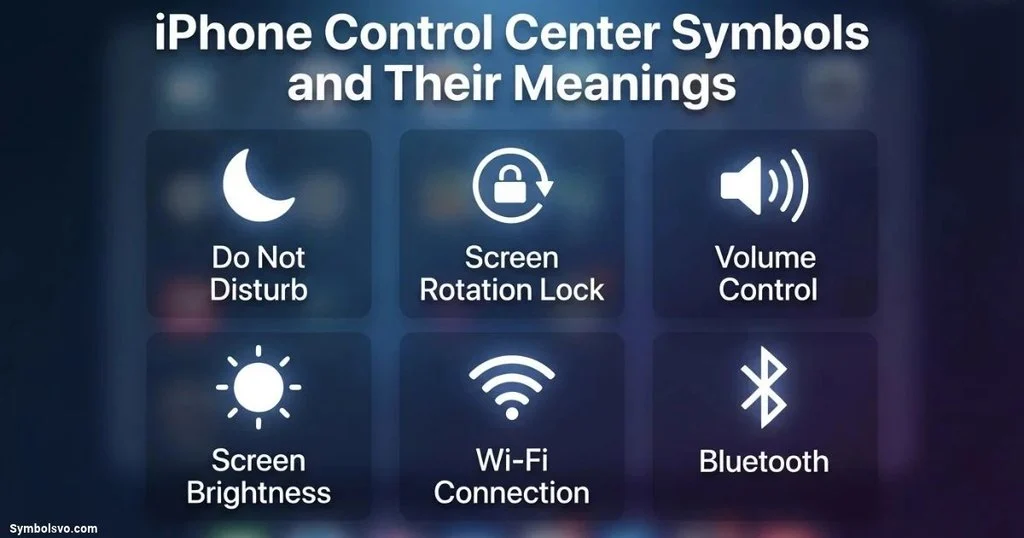
Control Center brings frequently used settings together in one place. Instead of opening multiple menus, you can quickly manage connectivity, display, sound, and accessibility features.
Here are the most useful iPhone Control Center symbols.
Connectivity Controls
| Symbol or control | Meaning |
| Airplane | Enables or disables Airplane Mode |
| Wi-Fi | Manages Wi-Fi connections |
| Bluetooth | Controls Bluetooth connectivity |
| Cellular Data | Turns mobile data on or off |
| AirDrop | Controls nearby wireless sharing |
| Personal Hotspot | Shares your internet connection |
| VPN | Manages supported VPN connections |
These controls help you manage how your iPhone communicates with other devices and networks.
Screen and Display Controls
Brightness Icon
The brightness slider controls how bright your screen appears.
Move it upward for a brighter display or downward to reduce brightness and save power.
Dark Mode Icon
Dark Mode changes supported system interfaces and applications to darker colors.
It can make the screen more comfortable in low-light environments, although its effect on battery life depends on your display technology and usage.
Night Shift Symbol
Night Shift changes the color temperature of your display toward warmer tones.
You can schedule it to activate automatically during certain hours.
True Tone
True Tone adjusts display colors and white balance based on surrounding lighting conditions.
It aims to make colors look more natural under different environments.
Text Size Icon
The Text Size control lets you adjust text size in supported applications.
This is particularly useful when you need larger text for easier reading.
Orientation Lock Icon
The orientation lock symbol looks like a padlock surrounded by a circular arrow.
When enabled, it prevents the screen from automatically rotating into landscape orientation.
Sound and Media Controls
Control Center includes several controls for managing audio and media.
- Volume: Adjusts audio output.
- Music Playback: Controls supported media playback.
- AirPlay: Sends audio or video to compatible devices.
- Screen Mirroring: Displays your iPhone screen on a compatible receiver.
- Noise Control: Changes supported AirPods noise-control settings.
- Spatial Audio: Manages supported immersive audio features.
These controls are especially useful when switching between headphones, speakers, and external displays.
Everyday Utility Controls
Apple provides several convenient shortcuts through the Control Center.
| Control | Purpose |
| Flashlight | Turns the rear LED light on or off |
| Camera | Opens the Camera app |
| Calculator | Opens the Calculator app |
| Timer | Starts a countdown |
| Stopwatch | Measures elapsed time |
| Alarm | Opens alarm controls |
| Code Scanner | Scans supported QR codes |
| Magnifier | Uses the camera to enlarge nearby objects |
| Notes | Opens a note-taking shortcut |
| Voice Memos | Starts or manages audio recordings |
The availability of individual controls depends on your iOS version and customization.
Privacy and Recording Controls
Screen Recording Symbol
The screen recording control allows you to capture activity on your iPhone display.
When recording begins, iOS displays a recording indicator. This helps you recognize that the device is capturing screen activity.
Microphone Controls
Some recording and communication features let you choose audio input or microphone modes.
Check the active app and its recording settings if you aren’t sure why your microphone is being used.
Guided Access
Guided Access limits your iPhone to a single application.
It’s useful when lending your phone to someone who should only use one app. You can restrict certain screen areas and features as well.
Accessibility Controls
Control Center can also provide shortcuts to useful accessibility features.
Voice Control: Lets you operate your iPhone using spoken commands.
Sound Recognition: Detects selected sounds, such as alarms and doorbells, and sends notifications when they occur.
Hearing Controls: Provides shortcuts for supported hearing-related features and accessories.
Accessibility Shortcuts: Gives you quick access to selected accessibility settings.
These features can make your device easier to use in different situations.
Other Apple Features
Additional Control Center controls may include:
- Music Recognition.
- Apple TV Remote.
- Home controls.
- Wallet.
- Announce Notifications.
- Magnifier.
- Dark Mode.
Music Recognition can identify songs through supported music recognition technology. The Home controls let you manage compatible smart home accessories.
How to Customize iPhone Control Center Icons
You can change the arrangement of supported controls to make frequently used features easier to reach.
On recent iOS versions:
- Open Control Center.
- Touch and hold an empty area or use the available edit option.
- Add controls from the available gallery.
- Rearrange supported controls.
- Remove controls you no longer need.
- Resize compatible controls if the option appears.
The exact editing process depends on your iOS version.
iPhone Focus Mode Symbols and Their Meanings
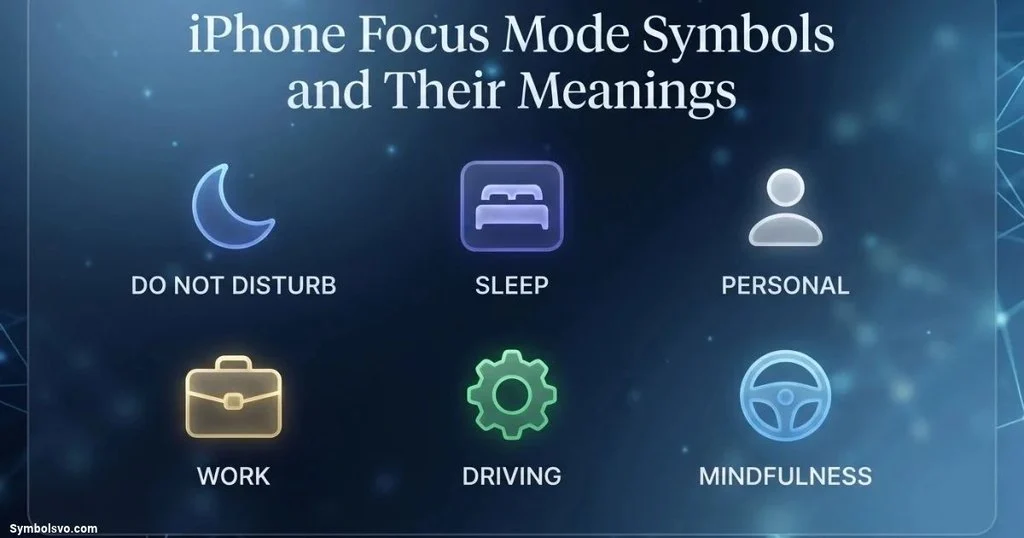
Focus Mode helps reduce distractions by controlling which notifications and calls can reach you.
When a Focus is active, its associated icon may appear in the status bar or on supported Lock Screen interfaces.
Here are the common iPhone Focus Mode symbols.
Do Not Disturb Symbol
Do Not Disturb commonly uses a crescent moon symbol.
When enabled, it silences or limits notifications according to your selected settings.
You can still allow notifications from specific people and applications.
Personal Focus Symbol
Personal Focus is designed for your private time.
You can use it to limit work notifications, silence selected apps, and customize your Lock Screen.
Work Focus Symbol
Work Focus helps you stay concentrated during working hours.
For example, you can allow notifications from colleagues while limiting social media alerts.
You can also schedule it around your work routine.
Sleep Focus Symbol
Sleep Focus helps reduce interruptions during your scheduled sleeping hours.
It can simplify your Lock Screen and limit notifications from selected contacts and applications.
Driving Focus Symbol
Driving Focus helps reduce distractions while you’re driving.
Depending on your settings, it can limit incoming notifications and automatically activate when your iPhone detects driving-related activity or connects to supported systems.
Fitness and Custom Focus Symbols
You can also create custom Focus modes for activities such as exercise, reading, or personal projects.
Each Focus can have its own name, icon, notification rules, and schedule.
To manage these options, open Settings > Focus.
iPhone Connectivity and Bluetooth Symbols
Connectivity icons help you understand how your iPhone communicates with accessories, vehicles, and other Apple devices.
Bluetooth Symbol
The Bluetooth icon indicates Bluetooth connectivity.
Your iPhone uses Bluetooth to communicate with wireless accessories such as headphones, speakers, keyboards, and compatible smart devices.
A Bluetooth symbol in the Control Center represents the connectivity control. Its appearance doesn’t always tell you whether a specific accessory is currently connected.
Headphones Connected Symbol
This indicator tells you that compatible headphones or audio accessories are connected.
Your iPhone may show the connected accessory’s name in audio output controls.
If sound plays through the wrong device, open Control Center and check the audio output selection.
Hearing Aids Connected Icon
Compatible hearing devices can connect to your iPhone through Apple’s supported accessibility features.
These connections allow you to manage certain hearing-related settings and audio functions.
The available options depend on your hearing device.
AirPlay Symbol
AirPlay lets you stream supported audio or video to compatible speakers, televisions, and other receivers.
For example, you can play music from your iPhone through a compatible wireless speaker.
Screen Mirroring Symbol
Screen Mirroring displays your iPhone screen on a compatible television or receiver.
It’s useful for presentations, showing photographs, and viewing content on a larger display.
To use it:
- Open Control Center.
- Tap Screen Mirroring.
- Select a compatible receiver.
- Follow any connection instructions.
CarPlay Icon
CarPlay connects your iPhone to a compatible vehicle system.
It provides access to supported applications such as Maps, Phone, Messages, and music services through your car’s display.
The CarPlay icon indicates an active connection with a supported vehicle system.
SharePlay Symbol
SharePlay allows people to share supported media experiences during compatible FaceTime calls.
Depending on the application, participants can watch videos, listen to music, or use shared activities together.
AirDrop Symbol
AirDrop allows you to share supported files with nearby Apple devices.
You can use it to send photographs, videos, documents, and other content.
Its receiving settings help control who can discover your device.
Apple TV Remote Icon
The Apple TV Remote control allows you to operate a compatible Apple TV using your iPhone.
It provides functions such as navigation, playback control, and text entry.
Personal Hotspot Symbol
Personal Hotspot lets your iPhone share its cellular internet connection with other devices.
You can connect another phone, tablet, or computer through supported wireless or wired methods.
Remember that sharing mobile data can increase battery consumption and use your cellular data allowance.
iPhone Privacy and Security Symbols
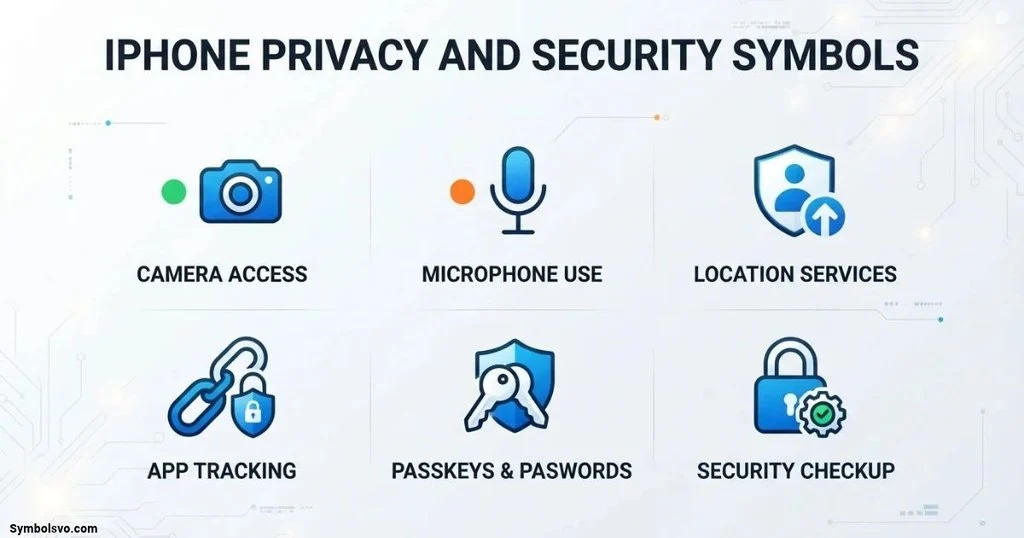
Privacy indicators help you understand when applications access sensitive hardware and information.
These iPhone privacy symbols are particularly important because they provide a visible warning when an app uses your camera or microphone.
What Does the Orange Dot Mean on iPhone?
The orange dot means an application is using your iPhone’s microphone.
For example, it may appear when you:
- Record a voice memo.
- Make a phone call.
- Send a voice message.
- Record a video with audio.
- Use a voice communication application.
The orange indicator helps you recognize microphone activity.
If it appears unexpectedly, check which application is using the microphone.
What Does the Green Dot Mean on iPhone?
The green dot indicates that an application is using your camera or both your camera and microphone.
You may notice it when opening the Camera app, joining a video call, or recording a video.
For example, a video communication app may activate the camera and microphone together.
The green indicator is a privacy feature rather than an error message.
How to Find Which App Is Using Your Camera or Microphone
If you see an unexpected privacy indicator, you can investigate the application responsible.
Follow these steps:
- Open Control Center while the indicator is active or shortly after it appears.
- Look for the privacy information shown near the top.
- Check the application identified by iOS.
- Close the application if its activity is unexpected.
- Review its permissions in Settings.
The information displayed may vary depending on your iOS version.
How to Check App Permissions on iPhone
Apple allows you to control which applications can access sensitive information and device features.
Open Settings > Privacy & Security.
From there, review permissions for:
| Permission | What it controls |
| Camera | Access to your camera |
| Microphone | Access to microphone input |
| Location Services | Access to your location |
| Photos | Access to your photo library |
| Contacts | Access to saved contacts |
| Bluetooth | Access to Bluetooth-related functions |
| Local Network | Access to devices on your local network |
| Tracking | Permission for supported cross-app and website tracking |
Review these permissions periodically.
If an application doesn’t need access to a particular feature, consider disabling that permission.
How to Check for Unknown or Suspicious Apps
An unfamiliar application doesn’t automatically mean your iPhone has been compromised.
However, reviewing installed apps is a sensible privacy habit.
Try these steps:
- Open the App Library and review installed applications.
- Check the Hidden folder in the App Library if your iOS version supports it.
- Review your App Store purchase and download history.
- Examine application permissions.
- Check the App Privacy Report for available activity information.
- Review Settings > General > VPN & Device Management for unfamiliar configuration profiles or management settings.
Don’t remove a management profile without understanding its purpose. Workplaces and schools may use legitimate device management systems.
Do Unknown iPhone Symbols Mean Someone Is Spying on You?
No. An unfamiliar iPhone symbol doesn’t automatically indicate spyware or unauthorized access.
Most system indicators represent ordinary device activity, such as location access, network connectivity, screen recording, or microphone use.
If you’re concerned, take practical steps:
- Identify the application associated with the indicator.
- Review its permissions.
- Remove applications you don’t recognize or trust.
- Install available iOS updates.
- Review unfamiliar device management profiles.
- Change your Apple Account password if you suspect unauthorized account access.
- Check your Apple Account device list for unfamiliar devices.
The best approach is to investigate specific activity rather than assume that every unusual icon signals a security problem.
iPhone App Icons and Notification Symbols
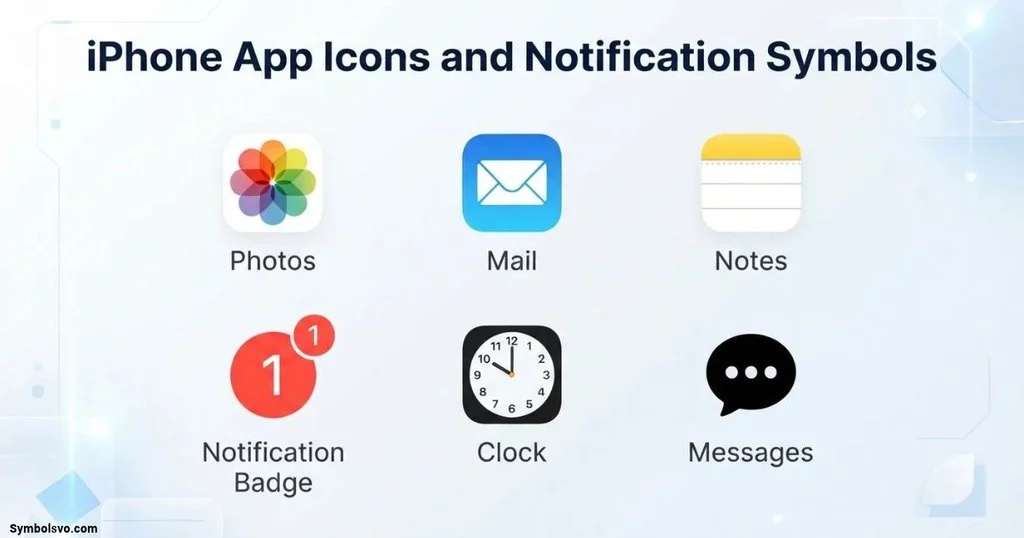
Not every symbol on your iPhone represents a system setting. Many belong to applications and notifications.
App Icons on the Home Screen
App icons help you identify installed applications.
For example:
- Messages represents text messaging.
- The camera opens the camera.
- Photos stores and organizes pictures.
- Settings provide device configuration.
- The App Store lets you download applications.
You can organize these icons into folders or move them between Home Screen pages.
Red Notification Badge
A red badge containing a number indicates pending notifications or unread activity.
For example, a Messages badge showing 5 may indicate five unread messages.
However, each application determines how it uses notification badges. The number doesn’t always represent unread messages.
Notification Preview Icons
Notifications can include application icons, contact photographs, and small symbols.
These help you identify the source of an alert without opening the application.
You can manage notification appearance through Settings > Notifications.
Live Activities Icons
Live Activities display ongoing information on the Lock Screen and, on supported models, Dynamic Island.
Examples include:
- Sports scores.
- Food delivery progress.
- Ride information.
- Timers.
- Navigation updates.
These activities provide useful information without requiring you to repeatedly open an application.
App Store Download and Update Indicators
When downloading an application, you may see a progress indicator on its Home Screen icon.
This shows that installation or updating is taking place.
If an application becomes stuck, check your internet connection and available storage before trying again.
Hidden Apps and App Library Symbols
Some iOS versions support hiding selected applications.
Hidden apps may appear in a protected Hidden folder within the App Library.
To review installed applications, open the App Library and inspect its available categories and folders.
An application being hidden doesn’t automatically mean it is malicious. Users may hide apps for privacy or organization.
Why Do iPhone Symbols Sometimes Disappear or Change?
You might notice that an icon appears one moment and disappears a few seconds later.
This behavior is usually normal. Many status indicators appear only when their associated feature is active.
Here are common reasons.
Why Are Some Status Bar Icons Missing?
The status bar has limited space.
On Face ID models, the notch or Dynamic Island also affects how information appears.
Some indicators are displayed only in the Control Center or while a particular activity is running.
Why Do iPhone Icons Change Color?
Color changes often communicate a different device state.
For example:
- Yellow battery: Low Power Mode.
- Green battery: Charging.
- Orange dot: Microphone activity.
- Green dot: Camera activity or camera and microphone use.
Don’t assume every colored icon has the same meaning across different applications.
Why Do iPhone Symbols Change After an iOS Update?
Apple sometimes changes the appearance, position, or behavior of system indicators through software updates.
An updated interface may also introduce new features and controls.
If an icon looks unfamiliar after updating, check the current iPhone User Guide and the relevant Settings menu.
Why Can’t I See All Status Bar Symbols at Once?
iOS prioritizes important information and available screen space.
Some symbols appear temporarily, while others move into Control Center or Dynamic Island.
This doesn’t necessarily mean the associated feature has stopped working.
Why Do Symbols Look Different on Older iPhone Models?
Different iPhone generations have different displays, buttons, and interface designs.
For example, an iPhone with a Home button doesn’t display information in exactly the same way as a Face ID model.
Some newer features also require compatible hardware and software.
How to Identify an Unknown Symbol on Your iPhone
If you see an unfamiliar icon, don’t immediately assume something is wrong.
Start by checking where it appears and what your iPhone was doing at the time.
Check the Status Bar and Control Center
First, determine whether the symbol appears at the top of your screen or inside the Control Center.
Status bar symbols generally communicate device activity. Control Center icons often represent settings you can change.
This simple distinction can narrow down the possibilities.
Tap or Touch and Hold the Unknown Control
If the symbol appears inside the Control Center, try tapping or touching and holding it.
Many controls display additional options or explain their function when expanded.
However, don’t tap unfamiliar prompts that request sensitive information.
Check Recent Notifications and Active Activities
Look at your Lock Screen and Dynamic Island.
An unfamiliar symbol might belong to a timer, active call, navigation session, or media application.
Checking recent activity can help identify its source.
Review Privacy and Location Settings
If the symbol resembles a camera, microphone, or location indicator, check Privacy & Security settings.
Review the applications that have permission to access those features.
Restart Your iPhone if an Icon Appears Incorrectly
A restart can sometimes resolve temporary interface problems.
Before restarting, save your work and close any important activities.
If the symbol remains after restarting, investigate the associated feature rather than repeatedly restarting your phone.
Update iOS if a System Icon Behaves Unexpectedly
Software updates can fix bugs and improve system stability.
To check for an available update:
- Open Settings.
- Select General.
- Tap Software Update.
- Follow the instructions if an update is available.
Back up important information before installing a major software update.
How to Fix Common iPhone Icon Problems
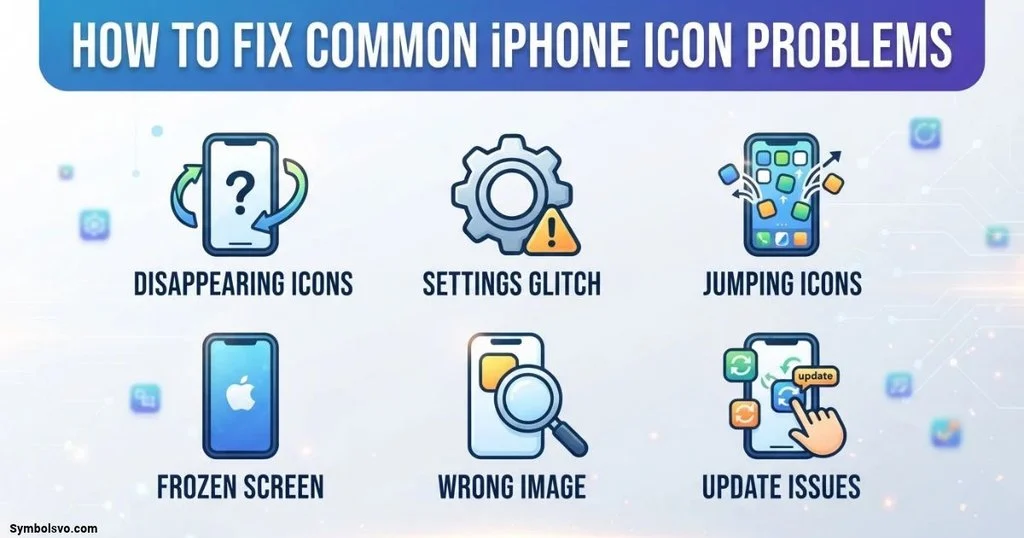
Some unfamiliar symbols are harmless, but others may point to connectivity or configuration problems.
Here are practical ways to handle common issues.
Wi-Fi Symbol Missing or Not Working
If Wi-Fi isn’t working:
- Open Settings and check Wi-Fi.
- Confirm that the correct network is selected.
- Restart your router if necessary.
- Move closer to the router.
- Check whether other devices can access the internet.
If the problem affects multiple devices, your router or internet provider may be responsible.
Cellular Signal Icon Showing No Service
Try these steps:
- Move to an area with better reception.
- Toggle Airplane Mode.
- Check your SIM or eSIM.
- Restart your iPhone.
- Contact your carrier about network outages or account issues.
If the problem continues, your carrier may need to investigate the connection.
Battery Icon Not Updating
If the battery percentage appears stuck, restart your device and check whether iOS is up to date.
Also inspect your charging accessories.
A damaged cable or faulty adapter can prevent normal charging.
Orange or Green Privacy Dot Appearing Unexpectedly
Open the Control Center and check the application associated with the privacy indicator.
If you don’t recognize the activity, close the app and review its microphone or camera permissions.
If the activity continues unexpectedly, investigate other applications that may have permission to use the same feature.
Location Arrow Appearing Frequently
Open Settings > Privacy & Security > Location Services.
Review applications with location access and adjust their permissions.
Some services legitimately request location information in the background. You can restrict access when it isn’t necessary.
Bluetooth Icon Showing an Unexpected Connection
Open Settings > Bluetooth.
Review the connected accessories and disconnect anything you don’t recognize.
If you suspect an unauthorized accessory, remove its pairing and investigate how it became connected.
Control Center Icons Missing
Your Control Center may have a customized layout.
Open Control Center and use its editing options to restore or add the controls you need.
Some controls may also be unavailable because of your iPhone model or iOS version.
Status Bar Symbols Not Displaying Correctly
If an indicator appears incorrectly:
- Restart your iPhone.
- Check for software updates.
- Review the associated feature’s settings.
- Check whether the issue occurs in every application.
- Contact Apple Support if the problem continues.
Avoid resetting all settings unless ordinary troubleshooting fails. That option can change many preferences you may have configured.
Frequently Asked Questions About iPhone Symbols
What Do iPhone Symbols Mean?
iPhone symbols communicate information about your device’s status and active features. They can indicate cellular reception, Wi-Fi, battery level, location access, camera activity, microphone use, and connectivity with other devices.
What Are the Symbols at the Top of My iPhone?
The symbols at the top of your iPhone generally include cellular signal strength, Wi-Fi connectivity, and battery level. Depending on your settings and active features, you may also see Focus, privacy, VPN, satellite, and other indicators.
What Is the Difference Between iPhone Status Bar Icons and Control Center Icons?
Status bar icons display information about your iPhone’s current state. Control Center icons provide shortcuts for managing settings and features such as Wi-Fi, Bluetooth, Airplane Mode, brightness, and screen recording.
What Does the Green Dot at the Top of My iPhone Mean?
The green dot indicates that an application is using your camera or both your camera and microphone. You commonly see it during video calls, camera use, and video recording.
What Does the Orange Dot at the Top of My iPhone Mean?
The orange dot means an application is using your microphone. It may appear during phone calls, voice recordings, voice messages, and other audio-related activities.
What Does the Arrow Symbol Mean on My iPhone?
The location arrow is associated with Location Services. It indicates location-related activity or permission states. You can review which applications have location access through Settings > Privacy & Security > Location Services.
What Does SOS Only Mean on an iPhone?
SOS Only means your iPhone can’t connect to your normal cellular provider’s service. However, emergency calls may still be possible through another available carrier network, depending on local support.
What Does the Satellite Symbol Mean on an iPhone?
The satellite symbol indicates the availability of supported satellite features in your location. On compatible devices, these can include Emergency SOS, Find My, Roadside Assistance, and Messages via satellite.
What Does the Yellow Battery Symbol Mean?
A yellow battery means Low Power Mode is enabled. This feature reduces certain background activities and system functions to help extend battery life.
What Does the VPN Symbol Mean on an iPhone?
The VPN indicator means your iPhone is connected to a network using a Virtual Private Network. A VPN can route network traffic through a separate server and provide additional privacy depending on its configuration.
What Does the 5G UC Symbol Mean?
5G UC stands for 5G Ultra Capacity. It’s a T-Mobile network label indicating access to its enhanced 5G service. Availability depends on your carrier plan, device compatibility, and network coverage.
What Does the Small Lock Symbol Mean on an iPhone?
A lock symbol can have different meanings depending on where it appears. In the status bar, it can indicate that your iPhone is locked. A padlock with a circular arrow in the Control Center represents Portrait Orientation Lock.
What Does the Airplane Symbol Mean?
The airplane symbol means Airplane Mode is enabled. It disables cellular connectivity and may disable other wireless functions. You can manage Wi-Fi and Bluetooth separately while this mode is active.
What Does the Moon Symbol Mean on an iPhone?
A crescent moon commonly represents Do Not Disturb Focus. It indicates that the Focus is active and that notifications are being managed according to your selected settings.
What Does the Headphones Symbol Mean?
The headphones symbol indicates that compatible headphones or audio accessories are connected. You can check your audio output options in the Control Center.
How Do I Find Out Which App Is Using My Camera?
Open Control Center while the green privacy indicator is active or shortly after it appears. Check the privacy information to identify the application. You can also review camera permissions under Settings > Privacy & Security > Camera.
How Do I Find Out Which App Is Using My Microphone?
Check the Control Center when the orange privacy indicator appears. iOS can show which application recently accessed your microphone. You can also manage microphone permissions through Settings > Privacy & Security > Microphone.
Can I Customize the Symbols in My iPhone Control Center?
Yes. Supported iOS versions allow you to add, remove, rearrange, and resize compatible Control Center controls. Open Control Center and use the editing options to customize its layout.
Why Do Some iPhone Symbols Disappear?
Some symbols appear only while a feature is active. For example, a screen recording indicator disappears when recording stops. Other indicators may move into Control Center or Dynamic Island because of limited status bar space.
Do iPhone Symbols Look Different on Different iOS Versions?
Yes. Apple can change icon designs, locations, and behavior through software updates. Some symbols also depend on your iPhone model, carrier, region, and available features.
Final Thoughts on iPhone Symbols and Their Meanings
Understanding iPhone symbols and their meanings makes it easier to manage your device and recognize what’s happening behind the scenes. From cellular signal bars and battery indicators to privacy dots and Focus icons, each symbol communicates useful information.
The most important thing is knowing where to look. Check the status bar for device information, open Control Center for quick settings, and review Privacy & Security when you notice unexpected camera, microphone, or location activity.
Remember that unfamiliar symbols don’t automatically indicate a problem. Most simply represent normal iPhone functions.
When you understand these indicators, you’ll have a clearer picture of your device’s connectivity, battery, privacy, and everyday activity.

Mason Ellington is a creative and dedicated Content Writer and Symbols Expert with a passion for words, communication, and symbolic meanings. He specializes in crafting engaging, informative, and well-structured content while exploring the deeper meanings and interpretations behind symbols. With a creative mindset and attention to detail, Mason transforms ideas into meaningful content that informs, inspires, and connects with readers. His expertise combines powerful storytelling, clear communication, and a deep understanding of symbolism.
 Daniel Brooks
 Nathan Holloway