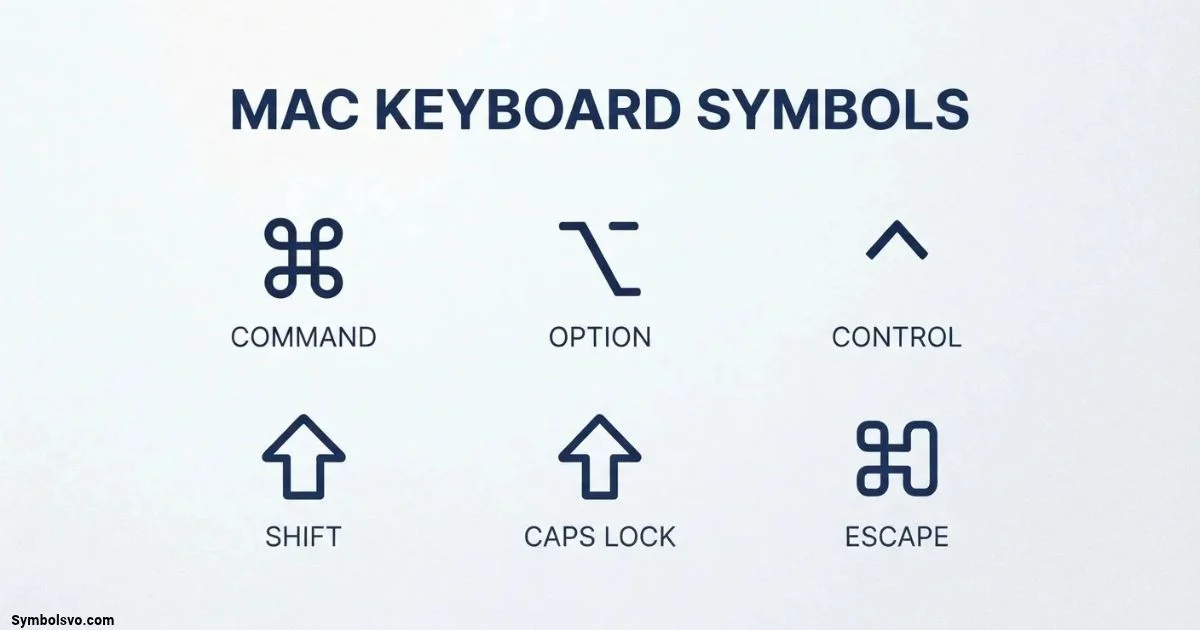
Mac keyboards use a mix of letters, numbers, special characters, and small icons to help you control your computer. Some symbols represent simple actions, such as increasing brightness or adjusting volume. Others stand for important macOS commands, including Mission Control, Spotlight, and keyboard shortcuts.
However, understanding these symbols isn’t always straightforward. Their functions can change depending on your MacBook model, Magic Keyboard version, macOS settings, and the application you’re using.
This guide explains the most common Mac keyboard symbols, what each one means, and how to use them. You’ll also learn about the F1–F12 keys, modifier symbols, media controls, and special MacBook keyboard features.
Mac Keyboard Symbols and Their Meanings
Before exploring individual keys, it helps to understand the symbols you’ll commonly see on an Apple keyboard. These icons represent actions that would otherwise require you to open a menu or click through macOS settings.
The following table provides a quick reference to common Mac keyboard symbol meanings.
| Symbol | Key name | Meaning or function |
| ⌘ | Command | Performs common keyboard shortcuts |
| ⌥ | Option | Provides alternate commands and special characters |
| ⇧ | Shift | Types uppercase letters and selects alternate characters |
| ⌃ | Control | Works with macOS and application shortcuts |
| fn / 🌐 | Function or Globe | Accesses function-key actions and other configured features |
| ⇪ | Caps Lock | Turns uppercase typing on or off |
| ⎋ | Escape | Cancels or exits certain actions |
| ⇥ | Tab | Moves between fields or creates indentation |
| ⏎ | Return | Confirms an action or starts a new line |
| ⌫ | Delete | Removes text or selected items |
| ▲ | Up Arrow | Moves upward through text, lists, and menus |
| ▼ | Down Arrow | Moves downward through content |
| ◀ | Left Arrow | Moves the cursor or selection left |
| ▶ | Right Arrow | Moves the cursor or selection right |
| ☼ | Brightness | Adjusts display brightness |
| 🔊 | Volume | Increases or decreases sound |
| 🌙 | Moon | Represents Focus or Do Not Disturb on supported keyboards |
| 🎙 | Microphone | Provides access to Dictation on supported keyboards |
| 🔍 | Magnifying glass | Opens Spotlight Search on supported keyboards |
| ⏯ | Play/Pause | Controls supported audio and video playback |
The table covers common symbols, but not every Mac keyboard includes all of them. Some older Apple keyboards also use different icons for the same feature.
For example, an older keyboard may display a grid of squares for Launchpad, while a newer one may use a Spotlight or Dictation symbol in that position.
Mac Function Key Symbols: F1 to F12 Explained
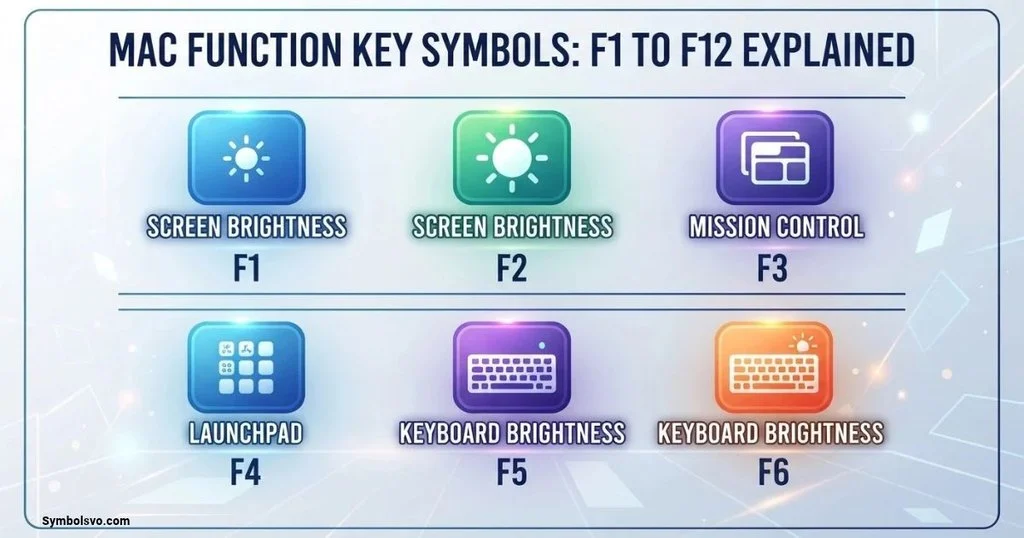
The top row of your Mac keyboard contains function keys labeled F1 through F12. On many Apple keyboards, these keys also display small icons that represent everyday system controls.
You can use the icons to adjust brightness, control media playback, manage sound, or access macOS features. Their exact arrangement depends on your keyboard.
One important detail: F1 does not always perform the same action on every Mac. Apple changes the top-row layout across models, so use the symbols printed on your keyboard as the most reliable guide.
F1 and F2: Screen Brightness Symbols
The sun symbols on Mac keyboards represent display brightness controls.
You’ll usually find two versions:
- Smaller sun: Decreases screen brightness.
- Larger sun: Increases screen brightness.
Press the appropriate key to make your MacBook display darker or brighter. This is especially useful when moving between rooms with different lighting conditions.
For example, you may prefer lower brightness while working in a dark room. When you move outdoors, increasing brightness can make the screen easier to read.
Some Apple keyboards also support additional brightness shortcuts. For example, holding Option while pressing a brightness key can open Display settings.
F3: Mission Control Symbol
The Mission Control symbol usually looks like several overlapping rectangles or windows.
Mission Control gives you an overview of everything open on your Mac. Instead of minimizing windows one by one, you can see your open applications and desktop spaces together.
You can use Mission Control to:
- View all open application windows.
- Switch between desktop spaces.
- Find a window hidden behind another application.
- Move between different workspaces.
- Organize your desktop more easily.
Imagine working with Safari, Notes, and Pages at the same time. Mission Control gives you a quick overview so you can choose the window you need.
If your keyboard doesn’t have a dedicated Mission Control key, you can also open it with Control + Up Arrow.
F4: Spotlight Search Symbol
A magnifying glass represents Spotlight Search on supported Mac keyboards.
Spotlight helps you find files, applications, documents, and other information stored on your Mac. You don’t need to open Finder and search through folders manually.
For example, type the name of an application into Spotlight to find it quickly. You can also search for a document, a setting, or other available information.
The standard Spotlight shortcut is:
Command (⌘) + Space
This shortcut works on many Mac configurations, although keyboard settings can change it.
F5: Microphone and Dictation Symbol
A microphone symbol represents Dictation on supported Apple keyboards.
Dictation lets you speak into your Mac instead of typing every word. Your Mac converts your speech into text in compatible applications.
This feature can help when:
- You’re writing a long document.
- Your hands are busy.
- You want to enter text more quickly.
- You prefer speaking to typing.
To use Dictation, place the cursor in a text field and activate the Dictation shortcut configured on your Mac. On many current configurations, pressing the Fn or Globe key with the appropriate Dictation command can start or stop it.
Dictation availability and its shortcut depend on your macOS settings.
F6: Moon Symbol and Focus Controls
The crescent moon symbol is associated with Focus and Do Not Disturb.
When Do Not Disturb is active, macOS can silence notifications and reduce interruptions. This makes it easier to concentrate during work, meetings, or study sessions.
For example, if you need to finish an important assignment, you can enable Do Not Disturb to avoid unnecessary notification alerts.
Focus settings let you customize which people and applications can send notifications. You can also configure different Focus modes for work, personal time, and other activities.
Not every Mac keyboard has a dedicated moon key. On some models, you need to use Control Center or System Settings instead.
F7: Previous Track or Rewind Symbol
The double-left-arrow symbol usually represents the previous-track or rewind function.
When you’re listening to music or watching supported media, this key can move playback backward.
Depending on the application, it may:
- Play the previous song.
- Restart the current track.
- Rewind audio or video.
- Move backward through a slideshow or presentation.
The exact action depends on the media application and its playback controls.
F8: Play and Pause Symbol
The play/pause symbol looks like a triangle beside two vertical bars.
It controls playback in supported media applications. Pressing the key can start or pause music, videos, and other media.
For example, if you’re listening to a playlist in Apple Music, pressing the Play/Pause key can temporarily stop the current song. Pressing it again resumes playback.
This control can also work with supported video players and browser-based media.
F9: Next Track or Fast-Forward Symbol
The double-right-arrow symbol represents the next-track or fast-forward function.
Depending on the application, it can:
- Skip to the next song.
- Move forward in a video.
- Advance through a slideshow.
- Skip to another media item.
If you’re listening to a playlist, this key can move to the next track without opening the music application.
F10: Mute Symbol
The speaker with a crossed-out sound indicator represents Mute.
Pressing this key turns your Mac’s sound off or restores it, depending on its current state.
It’s useful when you need to silence audio quickly during a meeting or while watching a video.
Remember that muting your Mac’s output doesn’t necessarily turn off a microphone used by a separate application. These are different audio controls.
F11: Decrease Volume
The speaker symbol with fewer sound waves represents lower volume.
Pressing the key reduces the sound coming from your Mac’s selected audio output.
You can use it to make music, videos, notifications, and other audio quieter.
F12: Increase Volume
The speaker symbol with more sound waves represents higher volume.
Pressing the key increases your Mac’s audio output.
If the sound is too quiet, use this control to raise the volume. You can also adjust sound levels through Control Center or Sound settings.
Remember: F1 through F12 are standard function-key names, but their assigned system actions aren’t universal. Check your keyboard’s printed icons and function-key settings before relying on a particular F-key arrangement.
Mac Keyboard Modifier Symbols and Their Functions
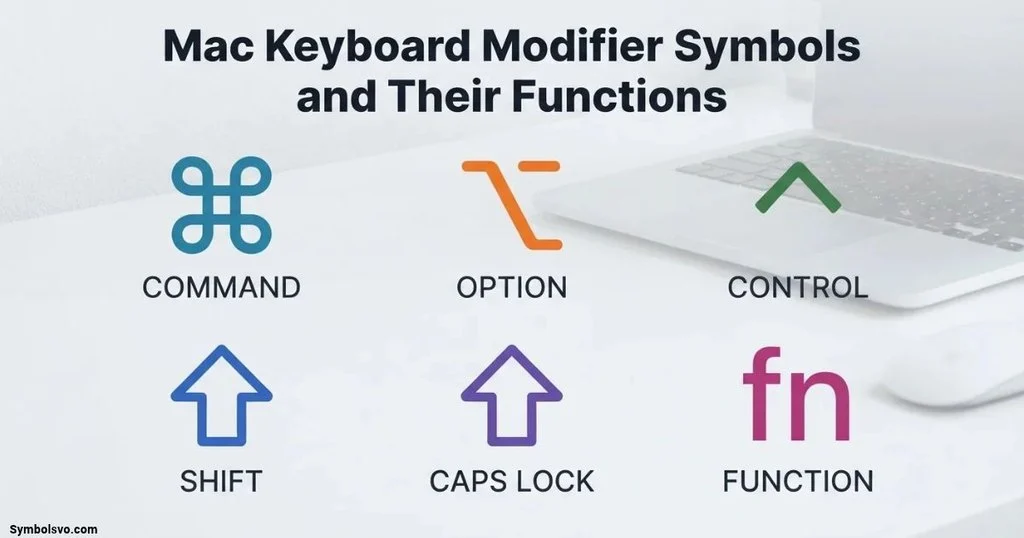
Modifier keys are among the most important Apple keyboard symbols to learn. They work alongside other keys to perform shortcuts and commands.
For example, pressing Command and C copies selected content. Pressing Command and V pastes it somewhere else.
Here’s what each modifier symbol means.
Command Symbol (⌘)
The Command key is one of the most frequently used keys on a Mac keyboard.
It works with letters, numbers, and other keys to perform common actions. You’ll find it on both sides of the Space bar on many Apple keyboards.
Common Command shortcuts include:
| Shortcut | Action |
| ⌘ + C | Copy selected content |
| ⌘ + V | Paste copied content |
| ⌘ + X | Cut selected content |
| ⌘ + Z | Undo the previous action |
| ⇧ + ⌘ + Z | Redo an undone action |
| ⌘ + A | Select all |
| ⌘ + S | Save the current document |
| ⌘ + F | Find text or items |
| ⌘ + P | Open the Print dialog |
| ⌘ + Q | Quit the current application |
If you switch from Windows to Mac, remember that Command often takes the place of the Control key in common shortcuts.
Option Symbol (⌥)
The Option key is also known as Alt on some keyboards.
It provides additional functions when you combine it with another key. Depending on the application, Option can help you enter special characters, access alternate commands, or perform more specific actions.
For example:
- Option + Command + Esc opens the Force Quit window.
- Option + Brightness Up opens Display settings on supported keyboards.
- Option + Volume Up opens Sound settings on supported keyboards.
The Option key can also help you type characters that aren’t printed directly on the keyboard.
Shift Symbol (⇧)
The Shift key changes how another key behaves.
Its most familiar purpose is typing uppercase letters. Hold Shift and press a letter to produce its uppercase form.
However, Shift does more than change letter cases.
You can use it to:
- Type the upper character printed on a key.
- Select text with the arrow keys.
- Combine with Command for additional shortcuts.
- Redo an action using Shift + Command + Z.
For example, holding Shift while pressing the Right Arrow selects text one character at a time.
Control Symbol (⌃)
The Control key works with other keys to access macOS commands and application functions.
It’s different from the Command key, even though both are used in shortcuts.
Some common examples include:
- Control + Up Arrow: Opens Mission Control.
- Control + Down Arrow: Shows all windows of the active application.
- Control + Command + Q: Locks your Mac screen.
- Control + Command + Space: Opens Character Viewer.
You may also use Control-click to open a contextual menu, which is similar to right-clicking with a mouse.
Function or Globe Symbol (fn / 🌐)
The Fn key, also called the Function key, appears on many Mac keyboards. Some newer Apple keyboards use a Globe symbol instead.
This key can change the behavior of other keys.
For example, if your top row normally controls brightness and volume, holding Fn while pressing an F-key can access its standard function-key action.
Depending on your keyboard and settings, the Globe key may also provide access to:
- Emoji and symbols.
- Input-source switching.
- Dictation.
- Other configured macOS features.
You can change some of these actions through Keyboard settings.
Caps Lock Symbol (⇪)
Caps Lock controls uppercase typing.
When it’s active, letters appear in uppercase without requiring you to hold Shift. Press it again to return to normal lowercase typing.
It’s particularly useful when entering text that requires capital letters throughout, such as certain abbreviations.
However, Caps Lock doesn’t change every character on the keyboard. Numbers and punctuation generally remain unaffected.
Other Important Mac Keyboard Keys and Symbols
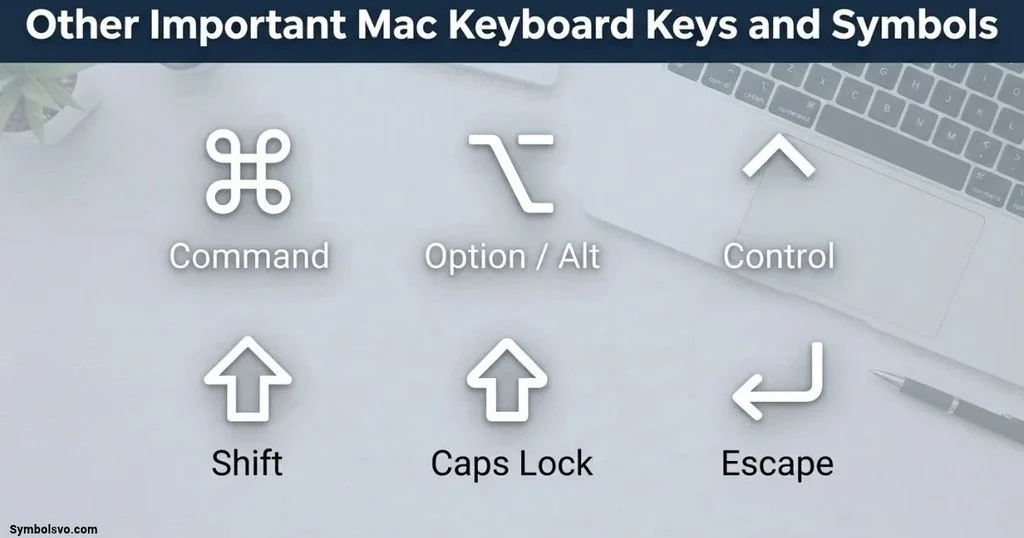
Apart from the modifier and function keys, your Mac keyboard contains several symbols that control navigation, text entry, and everyday actions.
Escape Symbol (⎋)
The Escape key is commonly labeled Esc or represented by ⎋.
It helps you cancel or exit certain actions. For example, you can use it to close a menu, cancel a dialog, or leave some full-screen experiences.
Its exact behavior depends on the application you’re using.
Tab Symbol (⇥)
The Tab key moves between fields, controls, and other selectable elements.
When you’re filling out an online form, pressing Tab can move the cursor from one field to the next.
In word processors and text editors, Tab can also insert indentation.
For example, you can use it to create an indented paragraph or move between cells in certain tables.
Return Symbol (⏎)
The Return key confirms actions or inserts a new line, depending on where you’re working.
In a text editor, pressing Return usually starts another line. In a dialog or search field, it may confirm your selection or submit your entry.
The Return key is sometimes called Enter, although the behavior can vary between applications.
Delete Symbol (⌫)
The Delete key removes characters or selected items.
On many Mac keyboards, pressing Delete removes the character immediately before the cursor. This is similar to Backspace on a Windows keyboard.
To delete the character after the cursor, you can use Fn + Delete on compatible keyboards.
You can also use Command + Delete in Finder to move a selected item to the Bin.
Arrow Keys (▲ ▼ ◀ ▶)
The four arrow keys help you move through content without using a mouse or trackpad.
Their common functions include:
- Moving the text cursor.
- Navigating menus and lists.
- Moving between cells in supported applications.
- Selecting items in certain interfaces.
- Adjusting controls and values.
Combine arrow keys with Shift or Command to perform additional navigation and selection actions.
Touch ID and Power Button
Many modern MacBook keyboards include a Touch ID button in the upper-right area.
Touch ID uses your fingerprint to authenticate supported actions. You can use it to unlock your Mac, approve certain purchases, and authenticate supported applications.
On compatible models, the same button also serves as the power button.
The design and available functions depend on your Mac model.
Mac Keyboard Symbols for Brightness, Sound, and Media Controls
The top row of your Mac keyboard is designed to make everyday adjustments easier. Instead of opening System Settings for every small change, you can use the dedicated icons when your keyboard supports them.
Screen Brightness Controls
The sun symbols control your Mac’s display brightness.
A smaller sun reduces brightness, while a larger sun increases it.
These controls are useful when:
- Working in a dimly lit room.
- Using your Mac outdoors.
- Reducing screen brightness at night.
- Adjusting the display for comfortable viewing.
Some external displays also support brightness adjustment through compatible keyboard shortcuts. However, this depends on the display and its connection.
Keyboard Brightness Controls
Some MacBook keyboards include dedicated backlight controls.
These symbols look like a keyboard with light rays or illumination indicators. They let you increase or decrease the brightness of the keyboard backlight.
A backlit keyboard makes the keys easier to see in low-light environments.
If your Mac doesn’t have dedicated keyboard-brightness keys, check Keyboard settings or Control Center for available controls. Some models adjust keyboard lighting automatically or don’t offer a manual adjustment.
Volume and Mute Controls
Mac keyboards with dedicated audio controls usually display three types of speaker symbols:
- Mute: Turns sound off or restores it.
- Lower volume: Reduces audio output.
- Higher volume: Increases audio output.
These controls affect the selected sound output, such as built-in speakers or connected headphones.
For more precise adjustments, open Sound settings or use the volume slider in Control Center.
Media Playback Controls
Media keys help you control supported audio and video without switching applications.
| Symbol | Function |
| ⏮ | Previous track or rewind |
| ⏯ | Play or pause |
| ⏭ | Next track or fast-forward |
These controls may work with Apple Music, Spotify, Podcasts, Safari, and other compatible applications.
However, media-key support isn’t identical across every application. If another app is currently playing audio or video, your keyboard may control that app instead.
Mac Keyboard Symbols for macOS Features
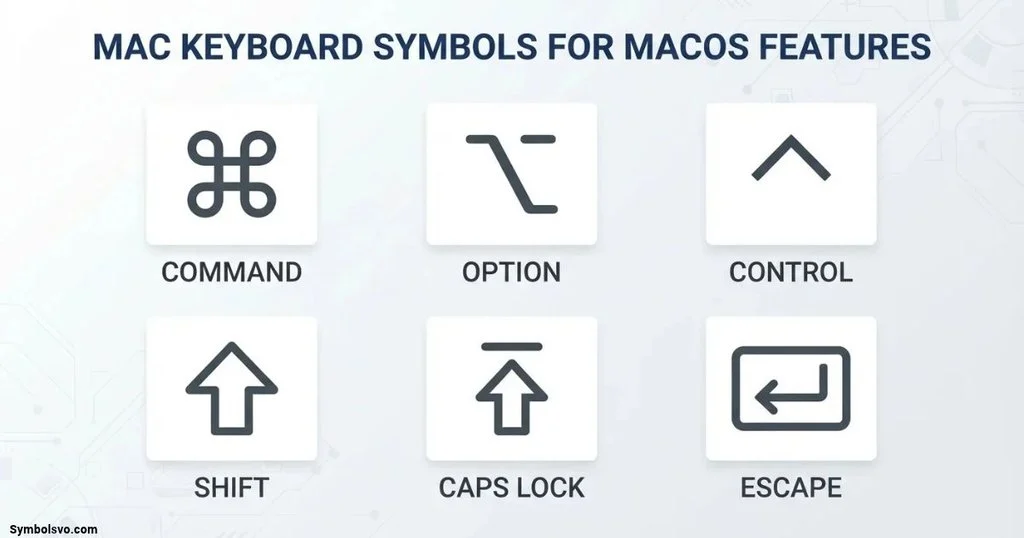
Some keyboard icons provide direct access to built-in macOS features. Learning these symbols can make everyday navigation much faster.
Mission Control Symbol
The overlapping-window symbol represents Mission Control on supported keyboards.
Mission Control displays open application windows and available desktop spaces. It gives you a broader view of your Mac’s workspace.
You can use it to:
- Find an application window.
- Switch between desktops.
- Organize multiple workspaces.
- Move between open tasks.
If your keyboard doesn’t have a Mission Control key, press Control + Up Arrow.
Spotlight Magnifying Glass
The magnifying glass represents Spotlight Search.
Spotlight is a built-in macOS search tool. It helps you find applications, files, documents, settings, and other available information.
To open Spotlight, press:
Command (⌘) + Space
Then enter the name of the item you’re looking for.
For example, typing “Safari” can help you find the browser without opening the Applications folder.
Six-Square Symbol and Launchpad
Some older Apple keyboards display a grid of squares representing Launchpad.
Launchpad provided a visual way to browse applications installed on a Mac. Its interface arranged apps in a grid, similar to an application launcher on other devices.
You could use it to:
- Browse installed applications.
- Open an application.
- Organize apps into folders.
- Move between pages of applications.
However, Launchpad isn’t the current default Apps interface in newer macOS releases. In macOS Tahoe 26 and later, Apple provides the Apps experience instead.
The shortcut Fn + Shift + A opens Apps in macOS Tahoe 26 or later. On earlier versions, the same shortcut opens Launchpad.
Moon Symbol and Do Not Disturb
The moon symbol represents Focus or Do Not Disturb on keyboards that include this control.
Do Not Disturb helps limit interruptions by silencing or filtering notifications.
You can configure Focus to allow notifications from selected people and applications. This means you don’t have to block every notification to stay focused.
For example, you might allow messages from family while silencing social media notifications during work.
If your keyboard doesn’t include a moon key, open Control Center and select Focus.
Microphone Symbol and Dictation
The microphone symbol provides access to Dictation on supported keyboards.
Dictation converts spoken words into text. You can use it in compatible text fields, including documents, notes, and messages.
To use it:
- Open a text field.
- Place the cursor where you want the text.
- Activate Dictation using your configured shortcut.
- Speak clearly.
- Stop Dictation when you’ve finished.
You may need to enable Dictation through System Settings before using it.
What Does the Fn Key Do on a Mac?
The Fn key changes the behavior of certain keyboard keys. Its purpose depends on your keyboard layout and macOS settings.
One common use is switching between dedicated system controls and standard function-key actions.
For example, pressing F3 may open Mission Control when the top row is configured for system controls. Holding Fn and pressing F3 can instead send the standard F3 function-key command.
This distinction matters when using applications that rely on standard function keys.
How to Use F1–F12 as Standard Function Keys
If you regularly use function keys in professional software, games, or other applications, you may prefer to make F1–F12 work as standard function keys by default.
Follow these steps on supported versions of macOS:
- Open the Apple menu ().
- Select System Settings.
- Click Keyboard in the sidebar.
- Select Keyboard Shortcuts.
- Choose Function Keys.
- Enable Use F1, F2, etc. keys as standard function keys.
After enabling this setting, the top row uses standard function-key behavior by default. You may need to hold Fn or Globe to access the special system controls.
The exact menu names can vary with macOS versions and keyboard types.
How Mac Keyboard Symbols Differ by Model
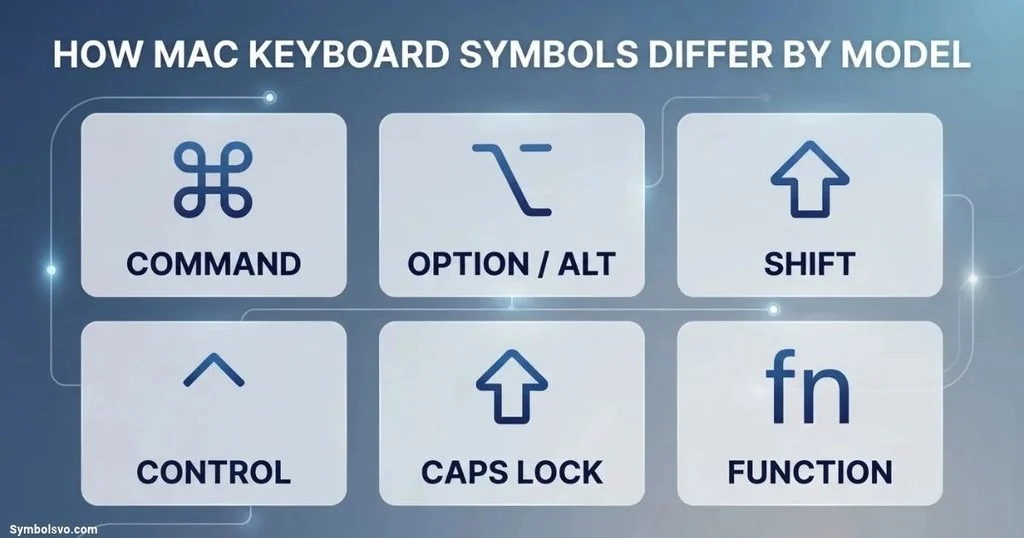
Not every Apple keyboard looks the same. A MacBook Air, MacBook Pro, and external Magic Keyboard can have different layouts and features.
Understanding these differences helps explain why a symbol appears on one Mac but not another.
MacBook Air Keyboard
MacBook Air keyboards generally include a function-key row with controls for system features.
Depending on the model, these can include:
- Display brightness.
- Mission Control.
- Spotlight or other system functions.
- Dictation.
- Media playback.
- Volume controls.
- Touch ID.
Some models also include a backlit keyboard.
The exact arrangement depends on the MacBook Air generation.
MacBook Pro Keyboard
MacBook Pro keyboards also include function keys, although their layouts have changed over time.
Newer models use a physical function-key row. Some older MacBook Pro models feature the Touch Bar, a narrow touch-sensitive strip that changes its controls according to the active application.
The Touch Bar can display brightness, volume, media, and application-specific controls.
This means older MacBook Pro users may see a different control layout from owners of newer models.
Apple Magic Keyboard
The Magic Keyboard is Apple’s external keyboard for Mac computers.
It offers a familiar Mac layout with modifier keys, function keys, and other controls. Some versions include Touch ID, while others don’t.
Magic Keyboard models can also differ in:
- Function-key layout.
- Globe or Fn key placement.
- Touch ID availability.
- Number-pad availability.
- Connection and charging features.
If you’re using a Magic Keyboard, check the symbols printed on its top row rather than assuming they match your MacBook’s layout.
Older Mac Keyboards
Older Apple keyboards may include symbols that aren’t present on newer models.
For example, some older layouts include a Launchpad grid or different media-control arrangements.
Apple has also changed the function-key row over time. Therefore, an older keyboard guide may not accurately describe a recent MacBook.
How to Use Mac Keyboard Shortcuts with Symbols
Mac keyboard shortcuts combine modifier keys with letters, numbers, or other keys.
To use a shortcut, hold down the modifier key or keys first. Then press the final key.
For example, to copy text, hold Command and press C.
Here are some useful Mac keyboard shortcuts to learn:
| Shortcut | What it does |
| ⌘ + C | Copies selected content |
| ⌘ + V | Pastes copied content |
| ⌘ + X | Cuts selected content |
| ⌘ + Z | Undoes the previous action |
| ⇧ + ⌘ + Z | Redoes an action |
| ⌘ + A | Selects everything |
| ⌘ + F | Finds text or items |
| ⌘ + S | Saves a document |
| ⌘ + P | Opens the Print dialog |
| ⌘ + Q | Quits the active application |
| ⌘ + Tab | Switches between open applications |
| ⌘ + Space | Opens Spotlight |
| Control + Up Arrow | Opens Mission Control |
| Shift + Command + 5 | Opens screenshot and screen-recording controls |
| Option + Command + Esc | Opens Force Quit |
A useful tip: application menus often display keyboard shortcuts beside commands. If you’re unsure which shortcut works, check the menu bar.
Also remember that individual applications can have their own shortcuts. A combination that performs one action in Safari may behave differently in another application.
Common Problems with Mac Keyboard Symbols
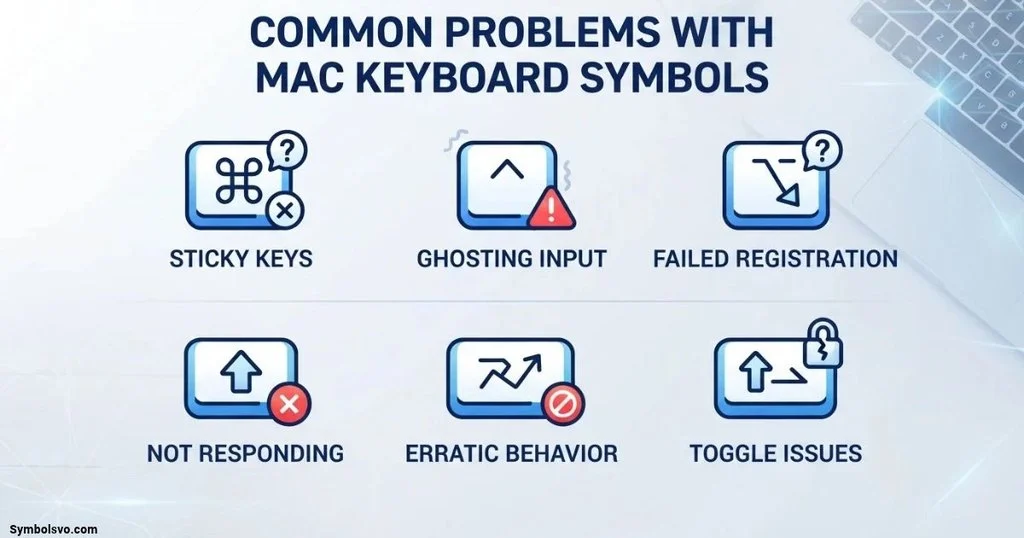
Sometimes a keyboard symbol doesn’t perform the action you expect. That doesn’t necessarily mean your keyboard is broken.
The issue may involve function-key settings, application support, or differences between Mac models.
Why Isn’t My Mac Brightness Key Working?
If the brightness key doesn’t respond, check the following:
- Make sure your Mac’s keyboard is connected properly.
- Check whether your display supports keyboard brightness control.
- Open System Settings and review display options.
- Check whether the key is configured as a standard function key.
If you’re using an external monitor, its brightness controls may require a separate adjustment method.
Why Does My F-Key Perform a Different Action?
Your function keys may be configured to perform standard F1–F12 commands instead of system controls.
Check the Function Keys section under Keyboard Shortcuts in System Settings.
Also try holding Fn or Globe while pressing the key. This can switch between the two types of actions.
Why Doesn’t My Mac Have a Keyboard Brightness Symbol?
Not every Mac keyboard includes dedicated backlight controls.
Some models adjust keyboard brightness automatically. Others provide available controls through macOS settings or Control Center.
Your MacBook model determines which options are supported.
Why Doesn’t the Moon Symbol Turn On Do Not Disturb?
The moon key may not be available on your keyboard, or its function may differ from what you expect.
Check Focus settings in macOS. You can also open Control Center to activate Do Not Disturb manually.
Why Don’t My Media Keys Control Spotify?
Media keys depend on application support and the current media session.
If another application is playing audio or video, your Mac may send playback commands to that application instead.
Check which application is currently active and make sure Spotify is running properly.
Frequently Asked Questions About Mac Keyboard Symbols
What do the symbols on a Mac keyboard mean?
Mac keyboard symbols represent commands and features. They include modifier keys, brightness controls, sound settings, media playback, navigation, and macOS tools such as Spotlight and Mission Control.
What do F1 to F12 keys do on a Mac?
F1 through F12 are function keys. Depending on your keyboard, they can control brightness, Mission Control, Spotlight, Dictation, media playback, and volume. You can also configure them to work as standard function keys.
What does the sun symbol mean on a Mac keyboard?
The sun symbol represents display brightness. The smaller sun decreases screen brightness, while the larger sun increases it.
What does the three-rectangle symbol mean on Mac?
The overlapping-rectangle symbol generally represents Mission Control. It gives you an overview of open windows and desktop spaces so you can switch between them.
What does the six-square symbol mean on Mac?
A grid of squares on an older Apple keyboard represents Launchpad. Launchpad displays installed applications in a grid. Newer macOS versions use the Apps interface instead.
What does the microphone symbol on Magic Keyboard do?
The microphone symbol provides access to Dictation on supported keyboards. It lets you speak into your Mac and convert your words into text.
What does the moon symbol mean on a Mac keyboard?
The moon symbol represents Focus or Do Not Disturb on supported keyboards. It helps reduce interruptions by controlling notifications.
How do I increase brightness using my Mac keyboard?
Press the brightness-up key, usually marked with a larger sun symbol. If your keyboard doesn’t have a dedicated brightness key, open Display settings or use available Control Center controls.
How do I decrease keyboard brightness on Mac?
If your Mac supports manual keyboard-backlight adjustment, use its keyboard-brightness-down control or check Keyboard settings. Some models manage backlight brightness automatically.
How do I open Mission Control using my keyboard?
Press the dedicated Mission Control key if your keyboard has one. You can also press Control + Up Arrow to open Mission Control.
How do I open Launchpad on a Mac?
On older macOS versions, use the Launchpad key if your keyboard has one or open Launchpad from the Dock or Applications folder. In macOS Tahoe 26 and later, use the Apps interface instead.
What does the speaker symbol mean on Mac?
Speaker symbols represent audio controls. A crossed-out speaker mutes sound, while speaker symbols with different numbers of sound waves decrease or increase volume.
How do I mute my Mac using the keyboard?
Press the dedicated Mute key if your keyboard includes one. You can also lower the volume to zero through Control Center or Sound settings.
How do I control music using Mac function keys?
Use the previous-track, play/pause, and next-track keys when your keyboard and media application support them. The keys can control compatible applications such as Apple Music and Spotify.
How do I use F1 to F12 as standard function keys?
Open System Settings, select Keyboard, and choose Keyboard Shortcuts. Open Function Keys and enable Use F1, F2, etc. keys as standard function keys.
What does the Fn key do on MacBook?
The Fn key changes the behavior of certain keys. It can help you access standard function-key commands, emoji, Dictation, and other configured features.
Can Mac keyboard shortcuts control Spotify?
Yes. Spotify can respond to supported media controls and keyboard shortcuts on Mac. However, playback behavior can depend on the application version and whether another media app is active.
How do I turn Do Not Disturb on and off using my Mac keyboard?
If your keyboard has a dedicated moon key, use it to control the supported Focus feature. Otherwise, open Control Center, select Focus, and choose Do Not Disturb.
Conclusion
Understanding Mac Keyboard Symbols makes everyday computer tasks easier. You can adjust screen brightness, control sound, manage media playback, switch between applications, and access important macOS features without reaching for your mouse.
Start by learning the Command, Option, Shift, and Control symbols. Then become familiar with the function keys and their printed icons.
Most importantly, remember that Mac keyboard layouts change between models. A symbol on an older MacBook may not appear on a newer one, and the same F-key can perform different actions depending on your settings.

Mason Ellington is a creative and dedicated Content Writer and Symbols Expert with a passion for words, communication, and symbolic meanings. He specializes in crafting engaging, informative, and well-structured content while exploring the deeper meanings and interpretations behind symbols. With a creative mindset and attention to detail, Mason transforms ideas into meaningful content that informs, inspires, and connects with readers. His expertise combines powerful storytelling, clear communication, and a deep understanding of symbolism.
 Daniel Brooks
 Nathan Holloway