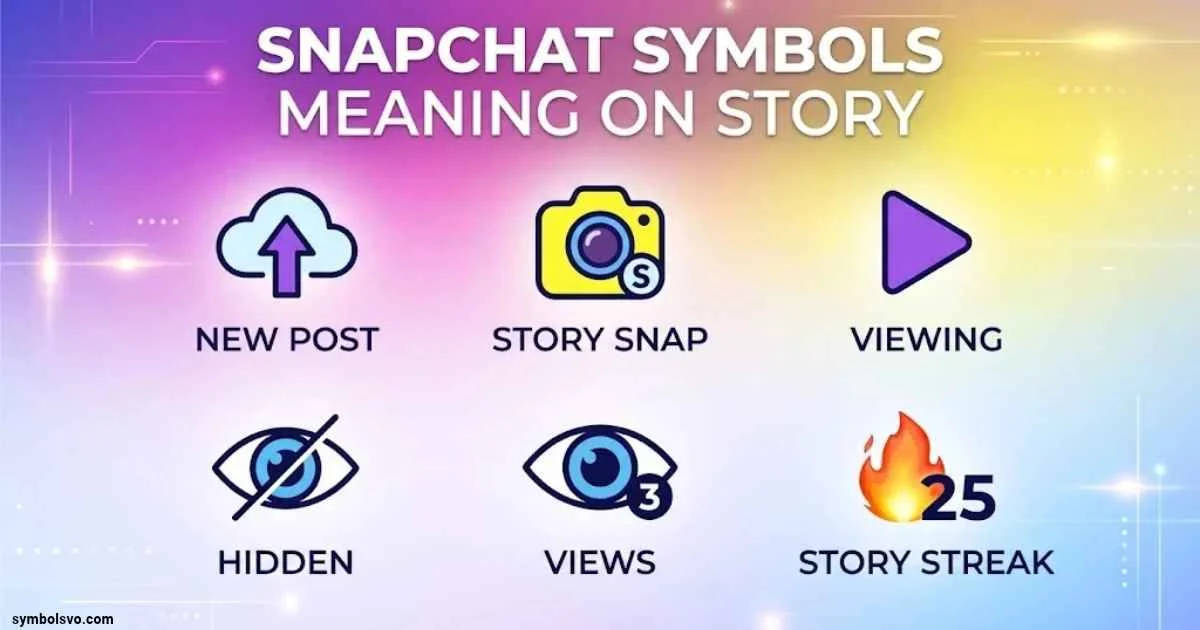
Snapchat uses different symbols, colors, rings, and emojis to show what’s happening around Stories, friendships, and account activity. However, not every icon means the same thing. A purple Story ring, a lock symbol, a green dot, and the eyes emoji each communicate different information. Some indicate a new Story, while others relate to privacy or Snapchat+ features.
Understanding Snapchat symbols’ meaning on Story helps you recognize who can view a post, whether someone has watched your Story, and what certain activity indicators reveal. It also prevents common misunderstandings, such as assuming that a green dot always means someone is online or that every purple circle confirms a Story has been viewed.
This guide explains the most important Snapchat Story symbols, their meanings, and where you’ll find them. You’ll also learn how Story indicators differ from Chat icons, Friend Emojis, and Snapchat+ features.
What Do Snapchat Symbols Mean in Story?
Snapchat symbols are visual indicators that help users understand different activities inside the app. They appear around profile pictures, Story previews, viewer lists, chat conversations, and friendship profiles.
Each symbol has a particular purpose. For example, a padlock identifies a Private Story, while an eyes emoji can show how many friends have rewatched a Story when the creator uses Snapchat+.
These icons make Snapchat easier to navigate without displaying a long explanation beside every action.
Where Do Snapchat Story Symbols Appear?
You can find Snapchat Story icons in several places throughout the app:
- Stories screen: Displays Story previews from friends, creators, and other accounts.
- Chat screen: Shows circular Story previews beside friends who have updated their Stories.
- Profile screen: Contains your own Stories and Story management options.
- Story viewer list: Displays viewer names, view counts, and available screenshot information.
- Friendship Profile: Shows friendship-related information and certain Snapchat+ features.
- Private Story section: Identifies Stories shared with a selected audience.
The location matters because the same color can represent different things in different parts of Snapchat.
Difference Between Snapchat Story Symbols, Chat Icons, and Friend Emojis
Although these indicators appear in the same app, they don’t serve the same purpose.
| Symbol category | Main purpose | Where you’ll find it |
| Story symbols | Identify Story previews, privacy, and viewing activity | Stories and profile screens |
| Chat icons | Show message delivery, opening, screenshots, and replays | Chat screen |
| Friend Emojis | Represent friendship interactions and Snapstreaks | Beside friends’ names |
| Snapchat+ indicators | Identify optional subscriber features | Profiles and Story tools |
| Activity indicators | Show recent activity when enabled | Friends’ avatars |
For example, a yellow heart represents a friendship status, not a Story view. Similarly, the green dot indicates recent Snapchat activity rather than confirming that someone has opened your Story.
Snapchat Story Symbols and Their Meanings
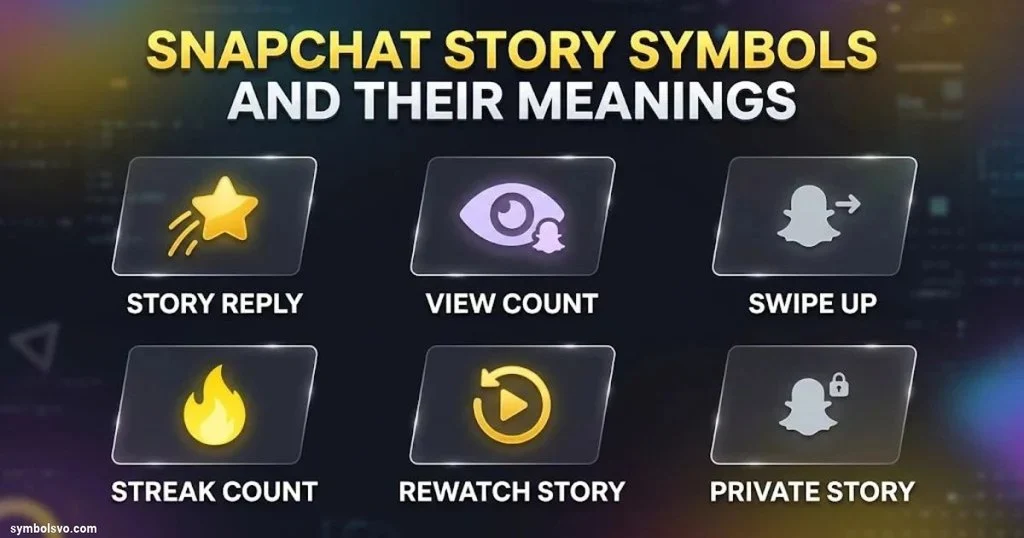
The most useful way to understand Snapchat Story symbols is to look at what each icon communicates and where it appears.
Some indicators tell you that a friend has posted something new. Others help you manage a Story’s audience or review interactions with your own content.
Purple Circle Around a Snapchat Story
A purple circle on Snapchat is commonly associated with Story previews displayed around a friend’s profile picture or Bitmoji.
When someone posts a Story, Snapchat can show a circular preview beside their name. You can tap that preview to watch the available content.
However, don’t assume that every purple ring has one universal meaning. Its appearance can depend on the screen, interface version, and Story state.
Here’s what to remember:
- A circular Story preview can indicate that a friend has updated their Story.
- Tapping the preview opens the available Story content.
- A Story you’ve already watched may no longer appear as an unread Story preview.
- If there’s no Story preview beside a friend’s name, Snapchat’s guidance says you’re caught up with that friend’s Stories.
Important: A purple ring doesn’t automatically mean someone viewed your Story. It usually relates to the Story preview you’re seeing.
Gray Circle or Ring Around a Snapchat Story
A gray circle on Snapchat can confuse users because people sometimes associate it with a viewed, expired, or unavailable Story.
The important distinction is that Snapchat doesn’t provide one universal gray-ring rule that applies to every screen and situation.
A gray appearance may depend on the interface or the specific Story state. Therefore, you shouldn’t treat the color alone as proof that someone has watched your Story or that the content has expired.
To understand what happened, check the actual Story:
- If the Story opens, you can view the available content.
- If the Story no longer appears, the content may have expired or been removed.
- If the Story is unavailable, its audience or availability may have changed.
- If you want to know whether someone watched your own Story, check its viewer list.
This approach is more reliable than guessing from a ring’s color.
Lock Symbol on Snapchat Story
<image-placeholder: Snapchat Private Story lock symbol>
The lock symbol on Snapchat identifies a Private Story. This feature lets you share selected Snaps with a specific group of friends instead of making the content available to your regular Story audience.
When you create a Private Story, you choose which friends can view it. Only you can add Snaps to your Private Story, and you control its audience.
For example, imagine you want to share a family celebration but don’t want every Snapchat friend to see it. You can create a Private Story and select only the people you trust.
Here’s how the feature works:
- The padlock identifies a Private Story.
- You select the friends who can view it.
- Only you can add content to your Private Story.
- Friends outside the selected audience aren’t notified that the Private Story exists.
- People who can view it may see its Snaps mixed with your regular My Story content.
Does a lock mean someone blocked you?
No. The lock symbol identifies Private Story content. It doesn’t mean you’ve been blocked.
Also, Private Stories aren’t completely protected from saving. Viewers can still take screenshots or screen recordings. Snapchat warns users not to share sensitive content simply because a Story has a restricted audience.
Eyes Emoji (👀) on Snapchat Story
The eyes emoji on Snapchat Story has a special meaning for Snapchat+ subscribers. It’s called the Story Rewatch Indicator.
When you post a Story, the eyes icon can appear beneath it to show how many friends have rewatched your content.
For example, if the indicator displays 3, it means three friends have rewatched that Story. It doesn’t mean the Story received only three views or that someone watched it exactly three times.
The distinction is important.
What the eyes emoji tells you:
- The number represents how many friends rewatched your Story.
- It appears as part of the Snapchat+ Rewatch Indicator.
- It can be used with My Story, Private Stories, and Shared Stories.
- You can enable or disable the Story Rewatch Count in your Snapchat+ membership settings.
- It doesn’t identify the specific friends who rewatched your content.
How to check the Story Rewatch Indicator:
- Open Snapchat.
- Tap your Story to view it.
- Swipe up to access Story information.
- Look for the eyes emoji and its accompanying number.
- Check your Snapchat+ settings if the indicator isn’t available.
The feature doesn’t reveal individual rewatchers. It provides a count instead.
Green Dot on a Snapchat Profile
The green dot on Snapchat is called the Activity Indicator. It appears on a friend’s avatar to show that they’ve been active on Snapchat recently.
Many users mistake this symbol for a live online indicator. However, the green dot doesn’t guarantee that someone is currently using Snapchat or looking at their phone.
For example, you might notice a green dot beside someone’s Bitmoji even though they haven’t opened your latest message.
That doesn’t necessarily mean they’re ignoring you. The indicator simply communicates recent activity.
What the green dot means:
- The person has been active on Snapchat recently.
- The indicator appears on their avatar when the feature is enabled.
- Users can disable the Activity Indicator through their privacy settings.
- It doesn’t confirm that someone has viewed your Story.
- It doesn’t reveal exactly when someone last opened Snapchat.
How to turn off the green dot:
- Open your Snapchat profile.
- Tap the Settings gear.
- Open My Privacy & Data under App & Privacy.
- Find Activity Indicator under Privacy Choices.
- Turn the feature off.
Remember that the green dot relates to account activity, not Story viewing.
Yellow Dot on Snapchat Profile
A yellow dot is sometimes associated with notifications or updates on a Snapchat profile.
However, don’t confuse it with the yellow heart emoji. They have different meanings and appear in different contexts.
The yellow heart represents a Best Friends relationship. A notification dot, on the other hand, is a visual cue that may draw attention to an account update or notification.
If you see a yellow indicator, check the area around it rather than assuming it relates to Story views.
Custom Story and Shared Story Indicators
Snapchat offers different Story-sharing options that allow users to control how content is shared.
Two important features are Private Stories and Shared Stories.
A Private Story lets you choose who can watch content that you post. A Shared Story provides a collaborative space where invited friends can contribute their own Snaps.
These features serve different purposes.
| Feature | Who can add Snaps? | Who can view it? |
| My Story | The account owner | The selected audience |
| Private Story | The account owner | Friends selected by the owner |
| Shared Story | Invited contributors | People with access to the Shared Story |
| My Story · Public | The account owner | A wider public audience |
Don’t assume every multiple-person symbol means a Private Story. Check the Story’s name, audience, and available controls to identify the feature correctly.
Snapchat Story Colors Explained
Colors help distinguish different Snapchat icons, but they don’t work as a universal code.
A purple Story preview doesn’t mean the same thing as a purple received Snap icon. Likewise, a red message indicator shouldn’t be interpreted as a Story-view status.
The most important rule is to consider both the icon’s shape and its location.
Purple Story Indicators
Purple is commonly associated with Story previews in Snapchat’s interface.
When you see a circular preview around a friend’s profile picture, it can indicate that the friend has posted Story content.
However, purple indicators can also appear in other parts of Snapchat. For that reason, always check whether you’re looking at a Story preview or a message status icon.
Blue Snapchat Indicators
Blue icons commonly appear in the Chat interface.
For example, Snapchat uses blue indicators for certain Chat-related actions. These symbols help users identify messages and interactions.
A blue Chat icon doesn’t automatically mean someone has watched your Story.
If you’re trying to understand a Story’s viewing status, open the Story itself and check its viewer information.
Red Snapchat Indicators
Red icons are commonly used for Snaps without audio in the Friends screen.
They can represent different message states, including sent, delivered, and opened Snaps.
The exact meaning depends on the icon’s shape and whether it appears as a filled or outlined symbol.
A red icon isn’t automatically a sign that someone has viewed your Story.
Gray Snapchat Indicators
Gray icons can appear in different situations, particularly around pending or expired messages.
For example, Snapchat’s Chat icon guide includes a gray pending or expired indicator.
Don’t confuse this with a gray Story preview. They belong to different parts of the interface.
| Color | Common context | What to check |
| Purple | Story previews and certain Snap indicators | Screen and icon shape |
| Blue | Chat-related activity | Message status |
| Red | Snaps without audio | Sent, delivered, or opened state |
| Gray | Pending or expired Chat/Snap indicators | Whether the message is available |
| Green | Recent account activity | Activity Indicator settings |
Snapchat Story Icons for Views, Screenshots, and Replays
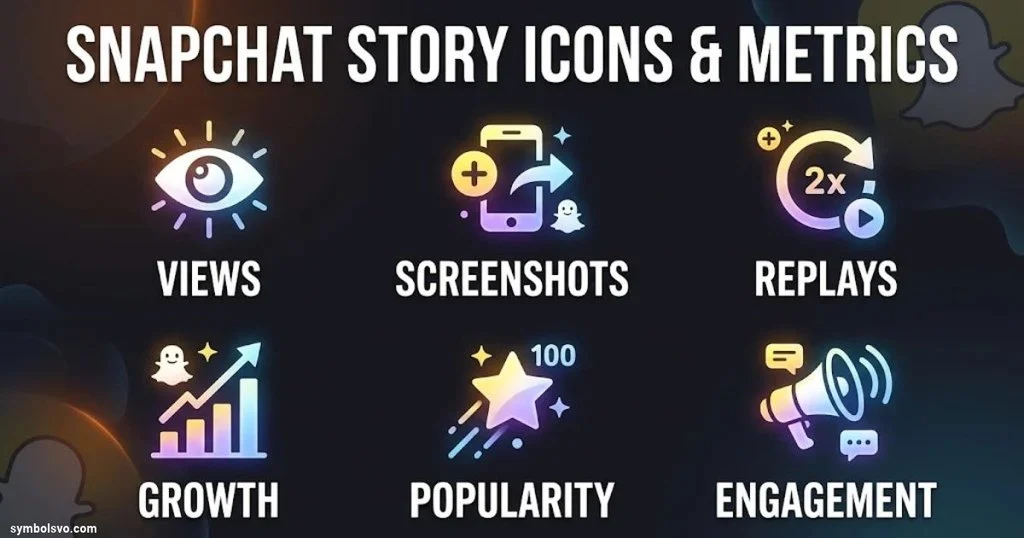
When you publish a Story, Snapchat provides information about how people interact with it.
You can check the viewer list, view count, and screenshot information. Snapchat+ also offers additional features, such as Story Rewatch Count and Story Timestamps.
Understanding these indicators helps you distinguish ordinary views from other interactions.
Snapchat Story View Count
The Story view count shows how many times your Story has been viewed according to Snapchat’s displayed Story information.
To check your viewers:
- Open Snapchat.
- Tap your profile picture.
- Select My Story.
- Open the Story Snap you want to check.
- Swipe up.
You’ll see the available viewer information.
Snapchat currently allows you to see the names of up to 200 Snapchatters who viewed your Story. After that, the app displays a number without showing additional viewer names.
This distinction matters if your Story receives a large audience.
The view count and the viewer list aren’t necessarily the same thing. The number tells you how many views Snapchat reports, while the list identifies the viewers available to you.
Snapchat Story Screenshot Indicator
A screenshot indicator tells you that someone captured your Story using Snapchat’s screenshot functionality.
This matters because disappearing content doesn’t guarantee that nobody can save it.
When you check your Story’s viewer information, Snapchat can show whether someone took a screenshot.
Keep these points in mind:
- A regular Story view doesn’t mean someone took a screenshot.
- A screenshot indicator reports a capture action.
- You can check screenshot information by opening your Story and swiping up.
- People may also record content using another device, which Snapchat may not detect.
For privacy reasons, avoid sharing sensitive information even when your Story audience is restricted.
Snapchat Story Rewatch Indicator
The Rewatch Indicator is a Snapchat+ feature that helps creators understand whether friends have watched their Story again.
Unlike the normal viewer list, it focuses on repeat viewing activity.
For example, suppose ten friends watch your Story and two of them return to watch it again. The Rewatch Indicator may show two friends as having rewatched it.
It doesn’t tell you which two friends they were.
Also, the number isn’t the total number of repeat plays. It represents the number of friends who rewatched the Story.
Snapchat Story Timestamps
Story Timestamps are another Snapchat+ feature.
They show when your friends viewed your Stories. The timestamp appears beneath a viewer’s name when you swipe up to check the viewer list.
For example, you might see that a friend watched your Story at 8:35 PM.
This feature provides more specific viewing information than a basic viewer list.
You can enable or disable Story Timestamps through your Snapchat+ membership settings.
Snapchat Private Story and Shared Story Symbols
Story privacy is one of the most important parts of understanding Snapchat’s icons.
The platform gives users several ways to control who can see their content. However, each sharing option works differently.
Private Story Lock Icon
The lock icon identifies a Private Story.
When you create one, you select the friends who can view your content. Other Snapchat users won’t receive a notification that you’ve created a Private Story.
This makes the feature useful for sharing personal updates with a smaller audience.
For example, you might use a Private Story for:
- Family gatherings.
- Personal celebrations.
- Private jokes with close friends.
- Everyday updates you don’t want to share publicly.
- Content intended for a selected group.
The owner controls the audience and decides what to add.
Custom Story Indicator
Custom Stories allow users to create more specific sharing experiences.
Depending on the available options, you can choose who participates or who can see the content.
A Custom Story shouldn’t automatically be confused with a Private Story. The features have different sharing and contribution controls.
Before interpreting a Story symbol, check its name and the permissions associated with it.
Public Story Indicator
A Public Story allows content to reach a wider audience than a friends-only Story.
Snapchat separates My Story · Public from My Story · Friends for users with access to public posting.
Here’s the basic difference:
| Story type | Audience |
| My Story · Friends | Your Snapchat friends |
| My Story · Public | A wider Snapchat audience |
| Private Story | Friends you select |
| Shared Story | People with access to the collaborative Story |
Public Stories may appear on a Public Profile. Friends and followers can also find public content in their respective Story sections.
Your age and account eligibility can affect the available public-sharing features.
Snapchat Friend Emojis and Heart Symbols Explained
Snapchat Friend Emojis appear beside friends’ names and represent different friendship interactions.
They aren’t direct Story-view indicators. However, they’re an important part of understanding Snapchat’s symbols because users often confuse these emojis with Story notifications.
Snapchat assigns Friend Emojis based on how you and your friends interact.
The emojis can change as your activity patterns change.
Snapchat Heart Symbols Meaning
The three most popular Snapchat heart symbols are yellow, red, and pink.
| Emoji | Name | Meaning |
| 💛 | Besties | You’re each other’s #1 Best Friend. |
| ❤️ | BFF | You’ve been each other’s #1 Best Friend for two consecutive weeks. |
| 💕 | Super BFF | You’ve been each other’s #1 Best Friend for two consecutive months. |
These emojis reflect mutual Snap activity.
For example, if you and a friend send the most Snaps to each other, Snapchat may display the yellow heart.
If that relationship continues for two weeks, the heart changes to red. After two consecutive months, it becomes pink.
Why do Snapchat hearts change?
Friend Emojis depend on your interactions. If your Snap activity changes, your friendship ranking may change too.
That’s why you might see a different heart beside someone’s name after a period of less frequent communication.
Other Snapchat Friend Emojis
Snapchat also uses several other emojis to represent friendship patterns and activity.
| Emoji | Meaning |
| 😊 | This person is one of your Best Friends, but not your #1 Best Friend. |
| 😬 | Your #1 Best Friend is also their #1 Best Friend. |
| 😎 | One of your Best Friends is also one of their Best Friends. |
| 🔥 | You have an active Snapstreak. |
| ⌛ | Your Snapstreak is close to expiring. |
| 🎂 | It’s your friend’s birthday according to their Snapchat birthday information. |
These icons help users understand their Snapchat friendships without opening every conversation.
What Does the Fire Emoji Mean on Snapchat?
The fire emoji represents an active Snapstreak.
A Snapstreak begins when you and a friend exchange photo or video Snaps for consecutive days.
The number beside the fire emoji tells you how many days the Streak has continued.
For example:
- 🔥 3 means a three-day Streak.
- 🔥 25 means a 25-day Streak.
- 🔥 100 means a 100-day Streak.
Both friends must send a qualifying photo or video Snap to each other every day to keep the Streak active. Ordinary text messages don’t count.
What Does the Hourglass Emoji Mean?
The hourglass emoji warns that a Snapstreak is about to expire.
When it appears, you and your friend should exchange qualifying Snaps as soon as possible.
Snapchat doesn’t provide a guaranteed countdown through this emoji. Therefore, don’t wait until the last moment.
Snapchat Plus Symbols Related to Stories
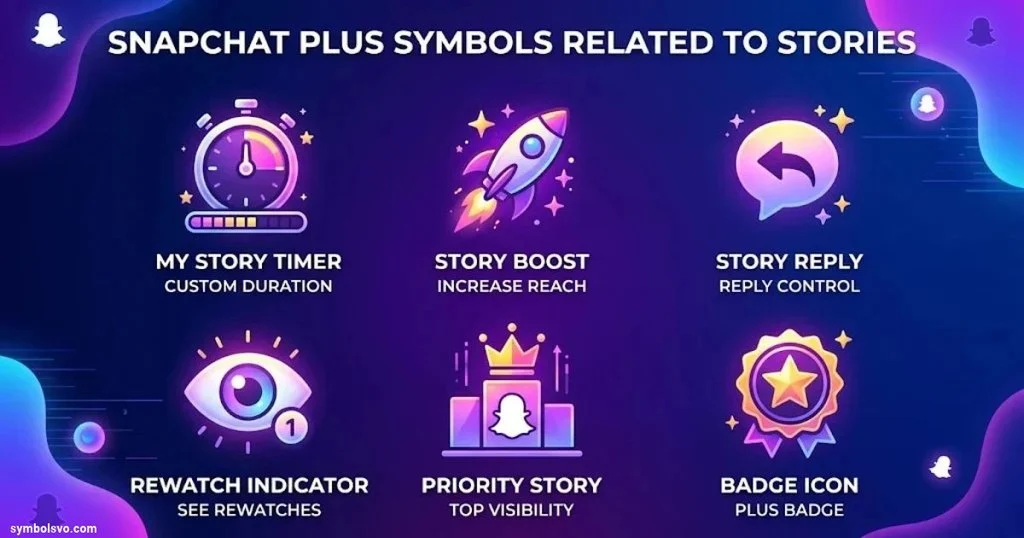
Snapchat+ is a paid subscription that provides additional features and customization options.
Some of these features affect Story viewing, friendship information, and profile appearance.
However, not every special-looking icon means an account has Snapchat+. You should identify the actual feature before drawing conclusions.
Snapchat+ Badge
The Snapchat+ badge is a black star symbol that subscribers can display beside their names.
It tells other users that the person has a Snapchat+ subscription.
The badge is turned off by default. Subscribers can enable it from their Snapchat+ membership settings.
To display it:
- Open your Snapchat profile.
- Tap the Snapchat+ membership card.
- Find the Snapchat+ Badge option.
- Turn it on.
The badge identifies a subscription. It doesn’t prove that the account is verified or belongs to a public figure.
Snapchat Friend Solar System and Planets
The Friend Solar System is a Snapchat+ feature that represents friendship rankings through planets.
When the feature is enabled, you may see a Best Friends badge with a gold ring on someone’s Friendship Profile.
Tapping the badge reveals your position in that person’s Friend Solar System.
Each planet represents a different position in their Best Friends list.
| Planet | Friendship position |
| Mercury | First |
| Venus | Second |
| Earth | Third |
| Mars | Fourth |
| Jupiter | Fifth |
| Saturn | Sixth |
| Uranus | Seventh |
| Neptune | Eighth |
For example, Mercury represents the first position, while Neptune represents the eighth.
The feature is turned off by default for first-time Snapchat+ subscribers. You can enable it through the Snapchat+ feature management settings.
Important: The Friend Solar System is about friendship rankings based on Snapchat interactions. It isn’t a Story-view ranking system.
Snapchat+ Story Rewatch Feature
The Story Rewatch feature gives subscribers access to the eyes emoji and its accompanying count.
It helps you understand whether friends have returned to watch your Story.
However, it doesn’t reveal the names of individual people who rewatched it.
This distinction is useful because many users assume the eyes icon provides a complete list of repeat viewers.
It doesn’t.
Snapchat+ Story Timestamps
Story Timestamps provide the time when a friend viewed your Story.
The information appears beneath the viewer’s name when you open the Story viewer list.
This can help you understand when friends interacted with your content without relying on guesses about their activity.
How to Check Who Viewed Your Snapchat Story
If you want to know who watched your Story, you don’t need to guess from colored rings or profile indicators.
Snapchat provides a direct way to check your viewer information.
Follow these steps:
- Open the Snapchat app.
- Tap your Bitmoji or profile picture.
- Find the My Story section.
- Tap the Story you want to check.
- Swipe up on the screen.
- Review the names and available viewer information.
You’ll see the number of views and the names of available viewers.
You may also find screenshot information and Snapchat+ features if your account supports them.
How to Understand the Story Viewer List
The viewer list can provide several types of information.
| Information | What it tells you |
| Viewer names | Which viewers Snapchat displays |
| View count | Number of reported views |
| Screenshot information | Whether Snapchat detected a screenshot |
| Eyes emoji | Number of friends who rewatched your Story, if enabled |
| Story timestamps | When friends viewed your Story, if enabled |
Remember that Snapchat displays up to 200 viewer names. After that, it shows a number without displaying additional names.
Can You See Who Viewed Your Story More Than Once?
Snapchat+ subscribers can use the Rewatch Indicator to see how many friends rewatched their Stories.
However, the feature doesn’t reveal exactly who watched it again.
A normal viewer list also shouldn’t be treated as a detailed record of every replay.
If you need information about repeat viewing, the eyes indicator is the relevant Snapchat+ feature.
Snapchat Chat Symbols vs. Story Symbols
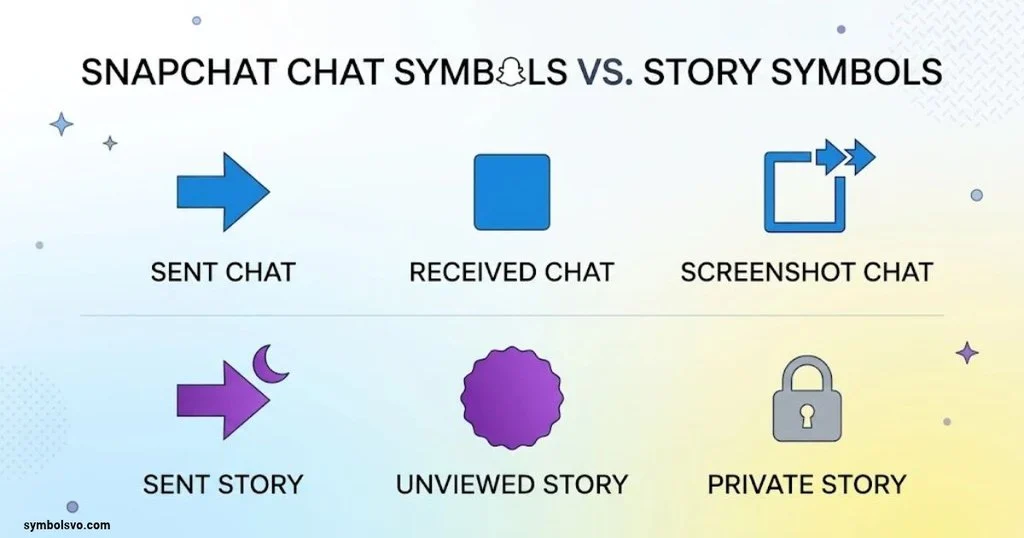
Some of the most confusing Snapchat icons actually belong to the Chat screen.
They show whether a message or Snap has been sent, delivered, opened, screenshotted, or replayed.
These icons don’t directly describe Story activity.
Sent Icons
Sent icons indicate that you’ve sent a Snap or Chat.
Their colors and shapes help distinguish different types of content.
For example, Snapchat uses separate indicators for Snaps with audio, Snaps without audio, and Chat messages.
Delivered Icons
Delivered icons show that your Snap or Chat has reached the recipient’s account.
Delivery doesn’t necessarily mean the person has opened it.
That’s an important distinction when checking whether someone has seen your message.
Opened Icons
Open icons indicate that a friend has viewed the Snap or Chat you sent.
Snapchat uses different icons depending on the content type.
An opened message is different from a Story view. The two activities appear in different parts of the app.
Pending Icons
A pending indicator can appear when a Snap or Chat hasn’t been successfully delivered.
Snapchat’s official Chat guide also identifies pending or expired message icons.
This doesn’t automatically mean someone blocked you. The status can depend on friendship and delivery conditions.
Screenshot and Replay Icons
Snapchat also displays special indicators when someone takes a screenshot of a Snap or Chat or replays a Snap.
These are separate from the Story screenshot and Rewatch indicators.
If you want to identify a particular message icon, check Snapchat’s official Chat Screen Icon Guide.
Snapchat Privacy Symbols and What They Reveal
Privacy indicators help users understand who can access their content and which activity details may be visible.
However, an icon shouldn’t be treated as a complete privacy report.
For example, a Private Story lock indicates a restricted audience, but it doesn’t prevent viewers from recording the content.
Story Privacy Settings
You can manage who sees your Stories through Snapchat’s privacy settings.
To check your options:
- Open your profile.
- Tap the Settings gear.
- Go to My Privacy & Data.
- Find View My Story.
- Choose the available audience option.
Depending on your account, you may see options such as My Friends or Custom.
Public posting is managed through My Story · Public.
One important detail: Snapchat explains that Story privacy settings at the time you post can remain in effect for those Snaps, even if you change the settings later.
Can Someone Screenshot a Private Story?
Yes.
A Private Story limits who can view your content. It doesn’t guarantee that viewers can’t save it.
Someone with access may take a screenshot or screen recording. They may also capture the content using another device.
Therefore, a restricted audience should never be treated as complete protection.
Does the Green Dot Reveal Your Exact Online Status?
No.
The green dot indicates recent activity, not a guaranteed live online status.
It doesn’t tell you exactly what someone is doing or whether they’re currently viewing your Story.
Does Snapchat Tell You Everything About Story Viewers?
No.
Snapchat provides viewer information and certain additional indicators, but it doesn’t reveal every detail about a person’s behavior.
For example, the Rewatch Indicator provides a count rather than identifying individual repeat viewers.
Why Do Snapchat Story Symbols Change or Disappear?
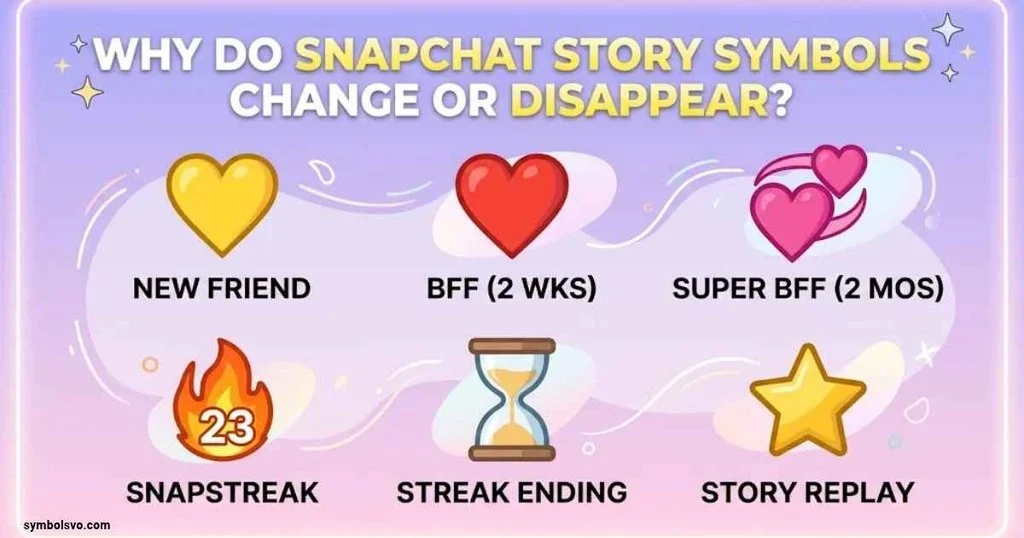
You may notice that an icon looks different or disappears after some time.
This doesn’t always indicate a problem with your account.
Several normal Snapchat features can affect the symbols you see.
A Story Has Already Been Viewed
Story previews can change after you’ve watched the available content.
If you don’t see the same preview beside a friend’s name, you may already be caught up with their Story.
However, the exact appearance depends on the screen and app version.
Private Story Audience Changes
A Private Story’s audience can change when its owner updates the selected viewers.
If you no longer have access, the Story may no longer appear for you.
That doesn’t necessarily mean the person blocked you or removed you as a friend.
Friendship Activity Changes
Friend Emojis can change because Snapchat bases them on interaction patterns.
For example, a yellow heart may disappear if you and your friend are no longer each other’s #1 Best Friend.
Similarly, a Snapstreak can end if both people don’t exchange qualifying Snaps within the required period.
Snapchat+ Subscription Changes
Some indicators depend on paid Snapchat+ features.
If a subscription ends or a feature is disabled, certain premium options may no longer be available.
The same applies when a subscriber turns off a particular feature through membership settings.
Snapchat App Updates
Snapchat regularly updates its interface and features.
These updates can change where icons appear, how certain indicators look, or which options are available.
If an icon suddenly looks different, check Snapchat’s current support documentation rather than relying on an old screenshot.
Common Snapchat Story Symbol Misunderstandings
Some Snapchat symbols are easy to misinterpret because users focus on their colors instead of their actual functions.
Here are several common misconceptions.
| Common question | Correct explanation |
| Does a purple circle mean someone viewed my Story? | Not necessarily. A circular Story preview can indicate available Story content. |
| Does a lock mean someone blocked me? | No. It identifies a Private Story. |
| Does the green dot mean someone is online right now? | No. It indicates recent activity. |
| Does the eyes emoji show who rewatched my Story? | No. It shows a count of friends who rewatched it. |
| Does a screenshot indicator mean someone saved my Story? | It indicates Snapchat detected a screenshot. |
| Does a gray circle always mean a Story expired? | No. Its meaning depends on the interface and context. |
| Does the yellow heart mean someone viewed my Story? | No. It represents a mutual #1 Best Friend relationship. |
| Does the hourglass mean a Story is expiring? | No. It warns that a Snapstreak is about to expire. |
| Does the Snapchat+ badge mean an account is verified? | No. It indicates a subscription when displayed. |
| Are Story symbols identical for everyone? | Not always. Features, settings, and interface versions can differ. |
The safest way to understand an unfamiliar icon is to identify where it appears and what feature it belongs to.
Frequently Asked Questions About Snapchat Story Symbols
What Does the Purple Circle Mean on a Snapchat Story?
A purple circular preview is commonly associated with Story content around a friend’s profile picture or Bitmoji. Tap the preview to watch the available Story. Its appearance alone doesn’t prove that someone viewed your own Story.
What Does the Lock Symbol Mean on Snapchat?
The lock identifies a Private Story. It means the content has a restricted audience selected by the person who created it. It doesn’t mean you’ve been blocked.
What Does the Green Dot Beside a Snapchat Profile Mean?
The green dot is the Activity Indicator. It shows that the person has been active on Snapchat recently. It doesn’t guarantee that they’re online at that exact moment.
What Do the Eyes Mean on a Snapchat Story?
The eyes emoji is the Snapchat+ Story Rewatch Indicator. Its number shows how many friends rewatched your Story. It doesn’t identify the individual people who watched again.
What Does the Yellow Dot Mean on Snapchat?
A yellow notification indicator can draw attention to account updates or notifications. Its meaning depends on where it appears. Don’t confuse it with the yellow heart, which represents a mutual Best Friends relationship.
How Can You Tell If Someone Viewed Your Snapchat Story?
Open your profile, tap your Story, and swipe up. Snapchat displays available viewer names and the view count. You may also see screenshot information.
Can You See Who Screenshots Your Snapchat Story?
Snapchat can show screenshot information in the Story viewer details. Open your Story and swipe up to check. However, recording the screen with another device may not be detected.
What Does the Gray Circle Mean on Snapchat?
A gray circle doesn’t have one universal meaning across every Snapchat screen. Check the specific icon, its location, and whether the Story or message is still available before deciding what happened.
Does Snapchat Notify Someone When You Rewatch Their Story?
A regular Story rewatch shouldn’t be confused with a separate notification. Snapchat+ provides a Rewatch Indicator to the Story creator, showing how many friends rewatched the Story. It doesn’t identify individual repeat viewers.
Are Snapchat Story Symbols the Same for Everyone?
Not necessarily. Some features depend on Snapchat+, privacy settings, device type, account eligibility, and app version. Users may also customize certain Friend Emojis.
Why Did My Snapchat Story Ring Disappear?
A Story preview may disappear after you’ve watched the available content. It can also disappear if the Story expires, gets deleted, or becomes unavailable to you. Check the Story itself instead of relying only on its ring.
Can Someone See If You View Their Story More Than Once?
Snapchat+ users can access the Rewatch Indicator, which displays how many friends rewatched a Story. However, it doesn’t identify individual repeat viewers.
Conclusion: Understanding Snapchat Story Symbols
Understanding Snapchat symbols’ meaning on Story becomes much easier when you know where each indicator appears and what feature it represents.
The purple Story preview helps you identify available Story content. The lock identifies a Private Story, while the green dot indicates recent account activity. The eye emoji belongs to Snapchat+’s Rewatch Indicator, and Story Timestamps provide additional viewing information for subscribers.
Friend Emojis, Chat icons, and Snapchat+ badges serve different purposes. A yellow heart represents a friendship ranking, a fire emoji indicates an active Snapstreak, and a red opened-Snap icon belongs to the Chat interface.
Most importantly, don’t judge an icon by its color alone. Check its shape, location, and associated features before deciding what it means.
Once you understand these differences, you can navigate Snapchat Stories with greater confidence, manage your privacy, and avoid common misunderstandings.

Mason Ellington is a creative and dedicated Content Writer and Symbols Expert with a passion for words, communication, and symbolic meanings. He specializes in crafting engaging, informative, and well-structured content while exploring the deeper meanings and interpretations behind symbols. With a creative mindset and attention to detail, Mason transforms ideas into meaningful content that informs, inspires, and connects with readers. His expertise combines powerful storytelling, clear communication, and a deep understanding of symbolism.
 Daniel Brooks